Test your voice agent
The Voice Playground is the fastest way to test a v3 voice agent end-to-end. You can make a real test call right from your browser — no telephony setup required — and watch the live transcript, tune VAD, and switch voices on the fly.
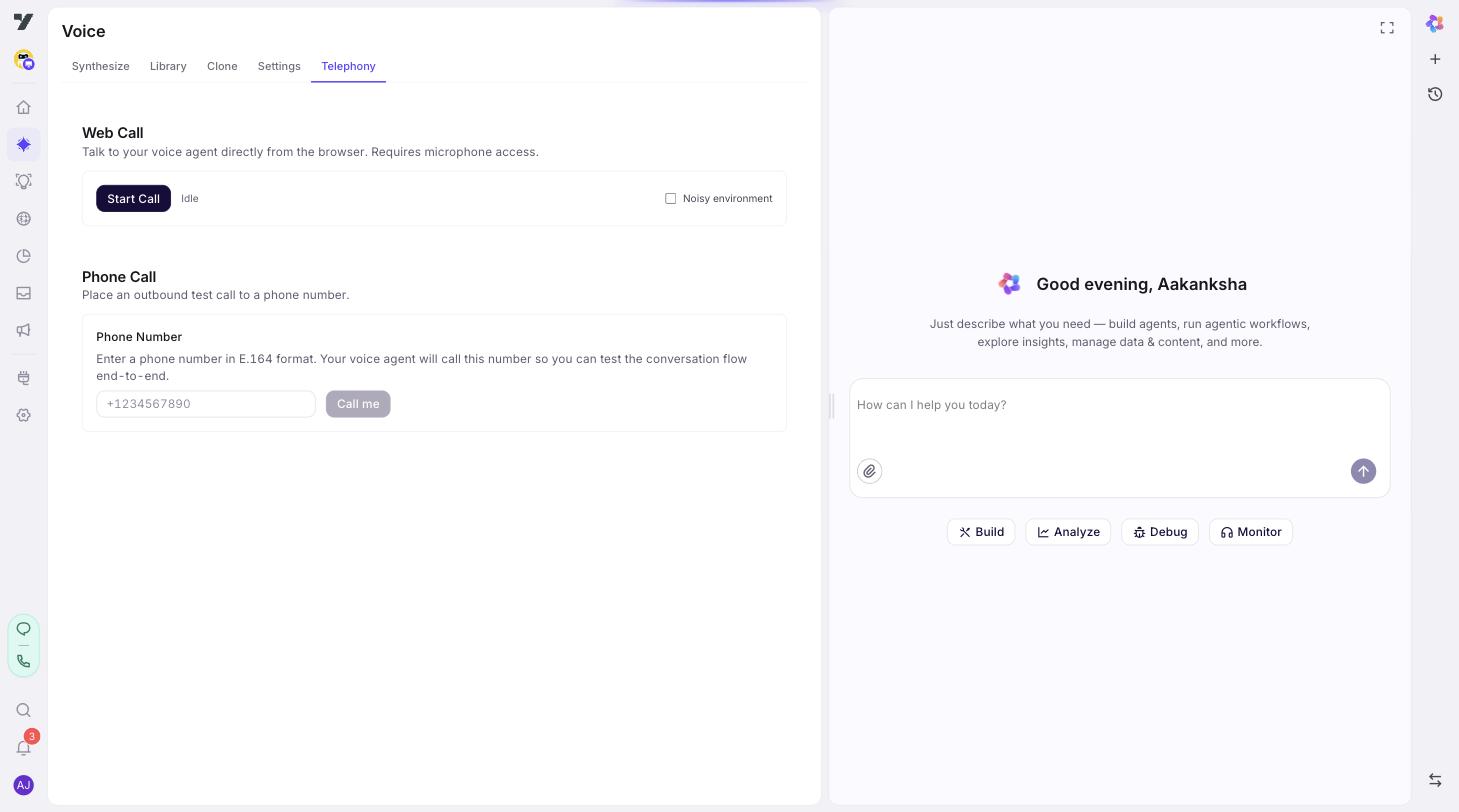
It lives in AI Agent → Voice → Telephony — the Web Call and Phone Call sections let you make a browser-based or outbound test call without any telephony provider setup.
Two ways to make a test call
| Mode | What happens | When to use |
|---|---|---|
| WebRTC (browser call) | Click Call and your browser becomes the phone. Audio in/out via your headset and mic. | Day-to-day iterating. No telephony provider required. Fastest loop. |
| Outbound call | Type a phone number and the bot calls it. Pick up on a real phone. | Verify the full telephony path including codec, caller ID, and regional routing. |
WebRTC is the default. Switch to outbound when you specifically need to test telephony.
Step-by-step: WebRTC test call
- Open AI Agent → Voice → Telephony.
- In the Web Call section, optionally tick Noisy environment.
- Verify your agent's Voice settings:
- Mode — Text & TTS (pipeline) or Realtime Audio. Match what you've configured in Voice Settings.
- TTS Provider — ElevenLabs, MiniMax, or Yellow AI (text mode only).
- Voice ID — pick the voice you want to test (your custom voices are listed here).
- Click Call.
- Speak into your mic. Watch the live transcript populate as your audio is recognized.
- The agent's reply plays back through your speakers.
- Click End when done.
The settings panel persists per bot — your last mode, voice, and provider choice are remembered next time.
Step-by-step: outbound test call
- Same setup as above.
- Type your own phone number into the Phone number field.
- Click Make call.
- Your phone rings. Pick up.
- Have the conversation as you would with a real customer.
- The transcript still shows live in the playground side panel.
Outbound calls require Telephony configured. WebRTC doesn't.
What to watch during a test call
The Voice Playground gives you several signals at once:
- The audio. Does the agent's voice sound right? Does the audio cut you off mid-sentence (VAD too aggressive) or feel laggy (VAD too patient)?
- The transcript. Did STT pick up what you actually said? Pay extra attention to names, numbers, and uncommon words.
- Latency. From when you finish speaking to when the agent starts replying. Anything over 2 seconds feels sluggish; under 1 second feels conversational.
- Tool calls. When the agent invokes a workflow, KB tool, or escalation, watch the transcript / replies for the resulting payload.
Inline VAD tuning
Voice Playground lets you adjust VAD without leaving the page. Same three knobs as in Voice Settings:
- VAD Threshold — speech vs silence sensitivity.
- Prefix Padding — audio captured before detected speech.
- Silence Duration — how long before the bot decides the user finished talking.
Adjust, call again, listen. Once you've found values that feel right, copy them back to the agent's Voice Settings so they apply everywhere.
Step-by-step: reproduce a production voice issue
Voice issues are often hard to describe ("the bot was weird"). The Voice Playground turns vague reports into actionable bugs.
- Get the call recording or transcript from production.
- Open Voice Playground.
- Match the agent config (provider, voice, mode) to what production was running when the issue occurred.
- Replay the user's input as best you can — speak the same phrasing, or use outbound mode to play a recorded test prompt.
- Watch live transcript + traces.
- The first divergent step from the production trace is your bug.
Common failure patterns and what they mean
| Symptom | Most likely cause |
|---|---|
| Agent cuts you off mid-sentence | VAD Silence Duration too low. Raise to 700 ms. |
| Agent waits forever after you stop speaking | VAD Threshold too high or Silence Duration too high. Drop one or both. |
| Agent replies but with the wrong voice | Voice didn't propagate yet — re-save Voice Settings, refresh, retry. |
| Transcript misses obvious words | STT struggling with accent, background noise, or specific vocabulary. Try a different STT provider in pipeline config. |
| Long latency between turn end and reply | Either model slow path (model choice / prompt size) or TTS slow path. Try a shorter system prompt or a faster TTS provider to isolate which side is slow. |
| Audio sounds robotic in production but fine in playground | Telephony codec issue. Compare provider codec settings to recommended. |
What the playground doesn't catch
WebRTC test calls bypass the telephony stack — they sound better than a real PSTN call because they don't go through codec compression. Always do at least one real outbound call before declaring victory:
- Different codec, different audio quality.
- Real network conditions.
- Real-world background noise on the user's side.
A bot that sounds great in WebRTC but bad on a real phone is a regular issue.
Best practices
- Test every meaningful change with at least one WebRTC call. Voice doesn't translate from "looks right in chat" to "sounds right" — you have to actually hear it.
- Test in the deployment language, not just English. Voice quality and STT accuracy vary widely by language and accent.
- Build a small voice regression suite. Five real test prompts you replay every release: a golden path, a slow speaker, a noisy environment, a hostile prompt, and an escalation. Catches most regressions.
- Use outbound calls for telephony verification, WebRTC for everything else. Keep your iteration loop fast.
- Listen to real production calls regularly. Recordings (where compliant) are the truth. Playgrounds simulate; recordings show what shipped.
Continue to: Voice Best Practices.