Voice on Nexus
Nexus brings a substantial voice upgrade to v3 agents: two distinct runtime modes, a custom voice library with cloning, expanded provider choice, and finer control over conversation latency. This section walks you through what's new, how to configure it, and how to test it.
If you're new to building voice bots in general, the foundational concepts (voice as a channel, speech recognition, text-to-speech basics) live under Voice as a Channel. The pages here focus on the v3-specific voice surface.
Two voice modes
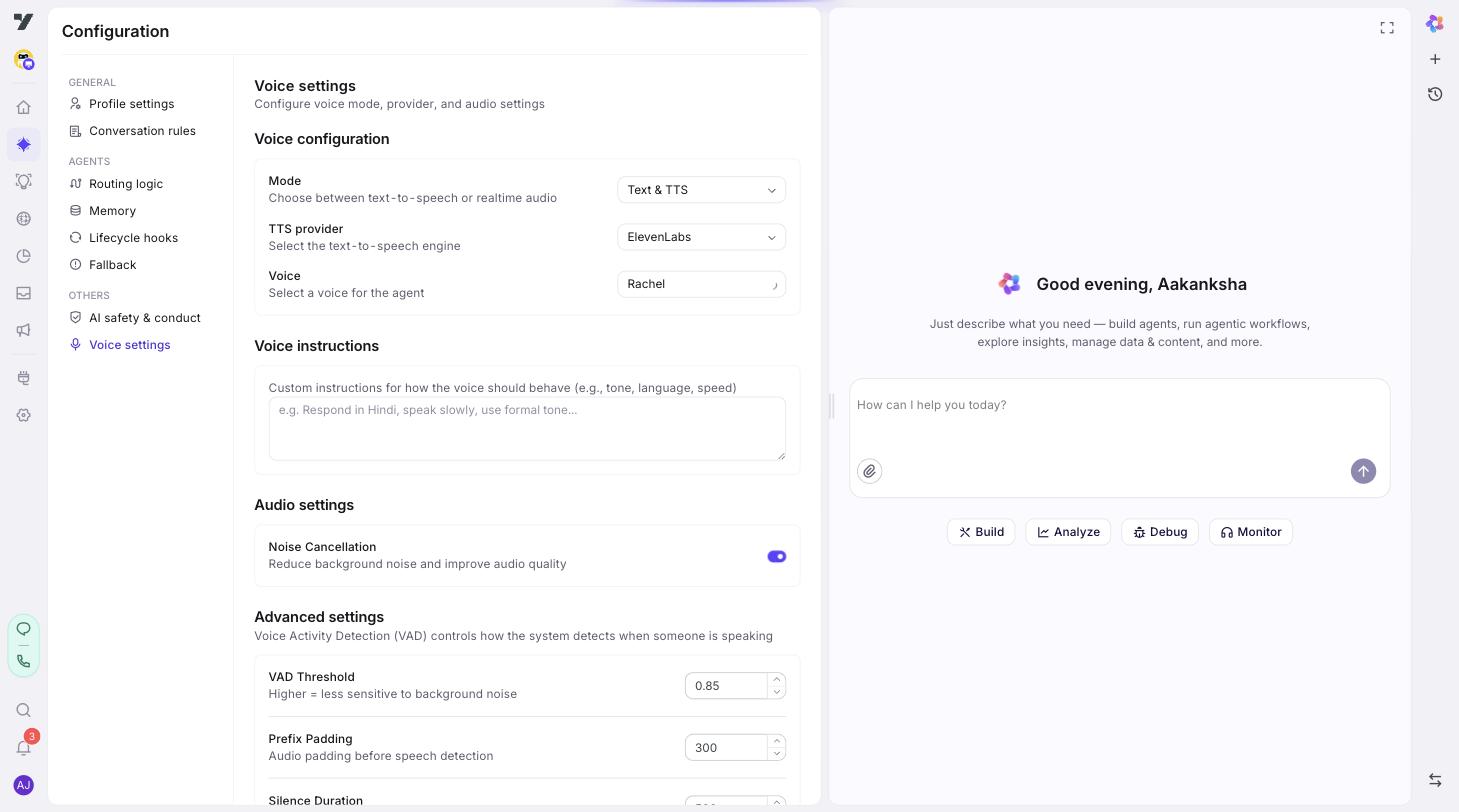
Every v3 voice agent runs in one of two modes — pick one in AI Agent → Profile → Voice Settings.
| Mode | How it works | When to use |
|---|---|---|
| Text & TTS (pipeline) | Speech-to-text → LLM executor → Text-to-speech. The classic three-stage pipeline, with each stage independently swappable and tunable. | Most production voice bots. Best provider choice, best language coverage, finest control over each stage. |
| Realtime Audio | Realtime audio API (OpenAI Realtime today; multi-provider framework in place for Gemini Live, Anthropic, and MiniMax). Audio in, audio out, no intermediate text. Supports registered tools (DynamicTool / MCP / KB), mid-call agent switch, greet-on-connect, and per-turn traces. | Short interactions where end-to-end latency matters more than fine-grained provider tuning. Newer voice agents that benefit from sub-second response. |
Both modes are fully supported. Pipeline mode is the default and what most production bots use today; Realtime Audio has reached feature parity with pipeline mode on tools / agent-switch / traces and is ready for new builds where its latency profile matters.
What's new for voice in v3
Compared to v2 voice bots, v3 gives you:
- A dedicated Voice section — separate top-level routes under
/ai-agent/voice/for settings, custom voices, telephony, and TTS testing. No more digging through deep menus. - Custom voices — clone a voice from a short audio sample, manage your library, browse curated global voices.
- More providers — pipeline mode supports Yellow AI (default), Deepgram, ElevenLabs, MiniMax, Microsoft Azure, Google, Sarvam for TTS and STT.
- Realtime Audio mode — OpenAI Realtime audio API for ultra-low-latency conversations. Now supports registered tools (DynamicTool / MCP / KB), mid-call agent switch, greet-on-connect, per-turn traces, and a multi-provider framework (Gemini Live / Anthropic / MiniMax adapters in flight). Production bots flip mode via
voiceOptions.mode = "realtime"in Voice Settings — no separate feature flag. - Tunable VAD (Voice Activity Detection) — control when the bot considers a user has finished speaking, exposed in Voice Settings and the Voice Playground.
- Per-language voice samples — voice cloning provides a guided sample text per language so users record the right thing first time.
- WebRTC test calls — make a real test call from your browser without setting up SIP first.
Where everything lives in the studio
| Page | Path | What it does |
|---|---|---|
| Voice Settings | AI Agent → Profile → Voice Settings | Provider, mode, voice ID, VAD, voice instructions. The agent-level config. |
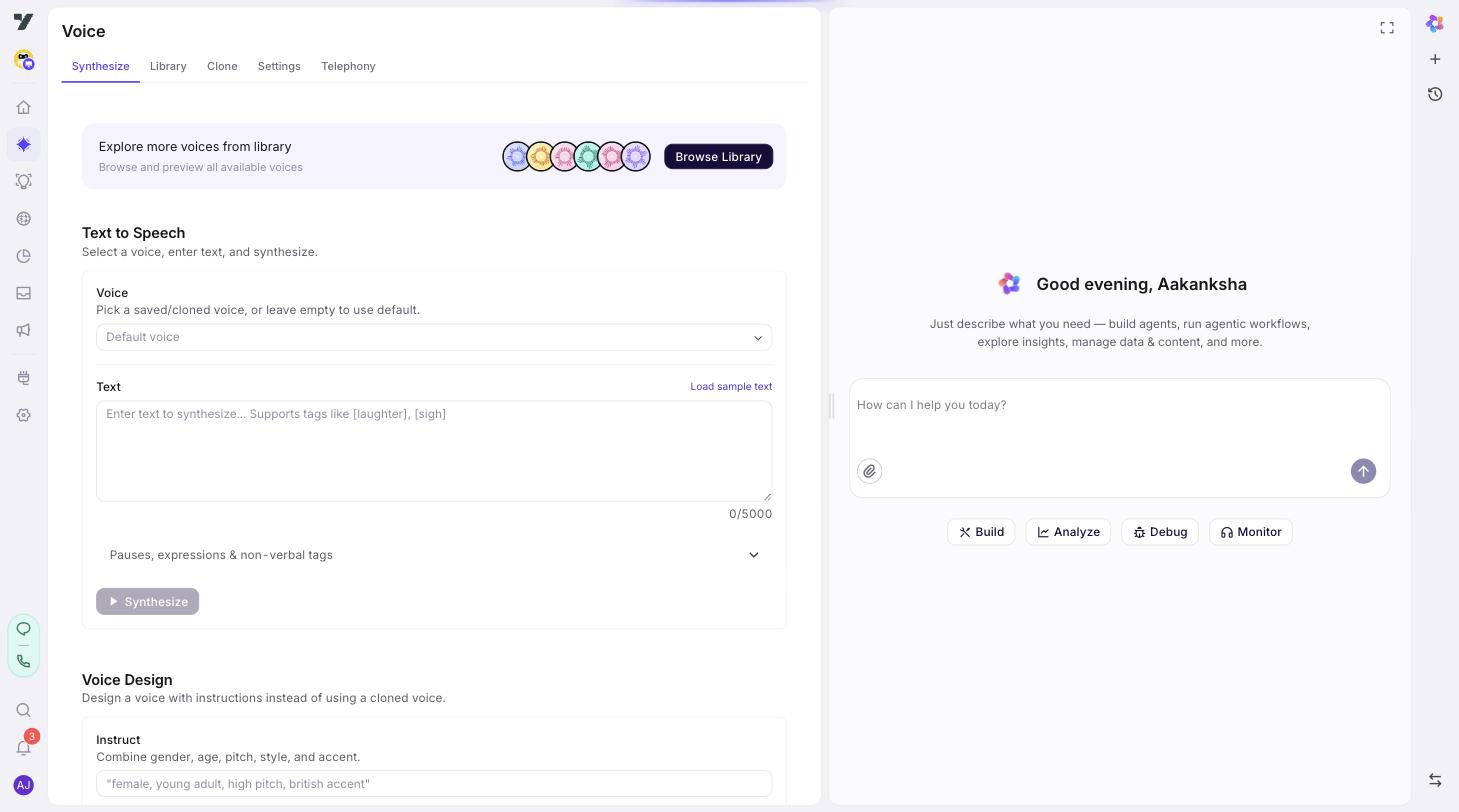
| Voice Library | AI Agent → Voice → Library | Browse your custom voices and Yellow's curated voices. Preview, copy ID, delete. |
| Clone a Voice | AI Agent → Voice → Clone | Upload or record a sample, name it, and add it to your library. |
| TTS Playground | AI Agent → Voice → TTS | Type any text, hear it spoken in any voice. Useful for picking a voice. |
| Telephony | AI Agent → Voice → Telephony | Connect Vonage, Twilio, or another provider. Configure SIP routing. |
| Voice testing | AI Agent → Voice → Telephony | Make a real test call (browser Web Call or outbound Phone Call), see the live transcript, hear the bot reply. |
The first five are configuration; the last is testing.
Where to go next
- Voice Settings — set the provider, mode, voice, and VAD for an agent.
- Custom Voices — clone a voice and manage your library.
- Telephony — wire a phone number to your bot.
- Testing — Voice Playground walkthrough.
- Best Practices — picking a mode, language, and provider; latency tuning.