Knowledge Base tool
The Knowledge Base tool lets your v3 agent answer from your documents and FAQs. When the user asks a question your KB can answer, the agent searches it, picks the best matches, and composes a reply grounded in the source content.
This is the right tool whenever the answer lives in content you've already authored — policies, product docs, internal wikis, FAQs.
Before you start
Make sure your knowledge base actually has content. Upload your documents and FAQs in the Knowledge Hub before connecting the KB tool. The tool searches whatever's there at runtime.
Step 1: Add the tool
In your bot, go to AI Agent → Tools → Add Tool → Knowledge Base. The configuration drawer opens with three tabs: Settings, KB Config, and Test.
Step 2: Settings — name and description
Like every tool, KB tools start with Name and Description.
Good description:
"Search Acme's product documentation and FAQs. Use this for any product feature question, troubleshooting, pricing tier comparison, or how-to. Do not use this for billing or order-status questions — those have dedicated tools."
The LLM reads this to decide when to fire the KB lookup vs another tool. Be explicit about both when to use it and when not to.
Step 3: KB Config — the meaningful settings
Switch to the KB Config tab. This is where most of the work lives.
Filters
Restrict the search to a subset of your KB:
- Tags — only search documents tagged with any of these.
- Source — only search documents from a specific source/connector.
- Document IDs — pin to a specific list of documents.
Use filters to scope a tool to a domain. If you have separate KB tools for "Product Docs" and "Internal Policies", give each its own tag filter so the LLM doesn't pull policy text into a product answer.
Tip: the _inputOverrides option lets you decide whether each filter is set by the LLM at runtime (source: "llm") or fixed in the config (source: "fixed"). Fix filters when you want guaranteed scoping; let the LLM decide when scoping depends on the user's question.
Confidence and result tuning
| Setting | What it does | Typical value |
|---|---|---|
| Confidence | The minimum match score (0–1) for a result to be used. Below this, results are dropped. | 0.6–0.8 |
| Search size | How many top results to retrieve from the KB. | 5–10 |
| Results per document | Cap on how many chunks to use from a single document — prevents one big doc from drowning out others. | 1–3 |
Best practices:
- Don't crank confidence to 0.9+. You'll get fewer hits and the agent will say "I don't know" too often. Start at 0.6, raise it only if you're seeing irrelevant matches.
- More search results ≠ better answers. 5 well-chosen chunks beats 20 noisy ones.
Results per document= 1–3 is usually right. Higher only when your docs have very long sections that genuinely span multiple ideas.
Result formatting
| Setting | Effect |
|---|---|
| Show links | Include source links in the agent's reply (so the user can read the full doc). |
| Show page numbers | Include page numbers for PDFs / paginated sources. |
| Show confidence | Display the match score next to each citation. |
| Rich media | Render images / videos / formatted blocks pulled from the source. |
Show links when your audience benefits from reading the source themselves (B2B support, technical docs). Hide them when you want a clean conversational reply (consumer chat, voice).
Conversation history
| Setting | Effect |
|---|---|
| Use conversation history | Pass prior turns into the KB query so context-dependent questions ("and what about the Pro tier?") work. |
| History turns | How many prior turns to include. |
Turn this on for any conversational KB tool. Without it, follow-up questions fall flat.
Result instructions
The result instructions field is a freeform prompt fragment that tells the LLM how to use the search results. Examples:
- "Always cite the document title in your reply."
- "If the user asks about pricing, also mention that pricing tiers are subject to annual contract changes."
- "Keep replies under three sentences unless the user asks for detail."
This is your hook for shaping the answer style without rewriting your bot's identity.
Cached answers (advanced)
The Use cached answers option hits a v2 endpoint with caching enabled. If a pre-computed answer above the confidence threshold exists, it's sent to the user directly — skipping the LLM composition step. This is faster and cheaper but less flexible.
Turn it on for high-volume FAQ bots where a known canonical answer is what you want. Leave it off when you want the LLM to phrase the answer in context.
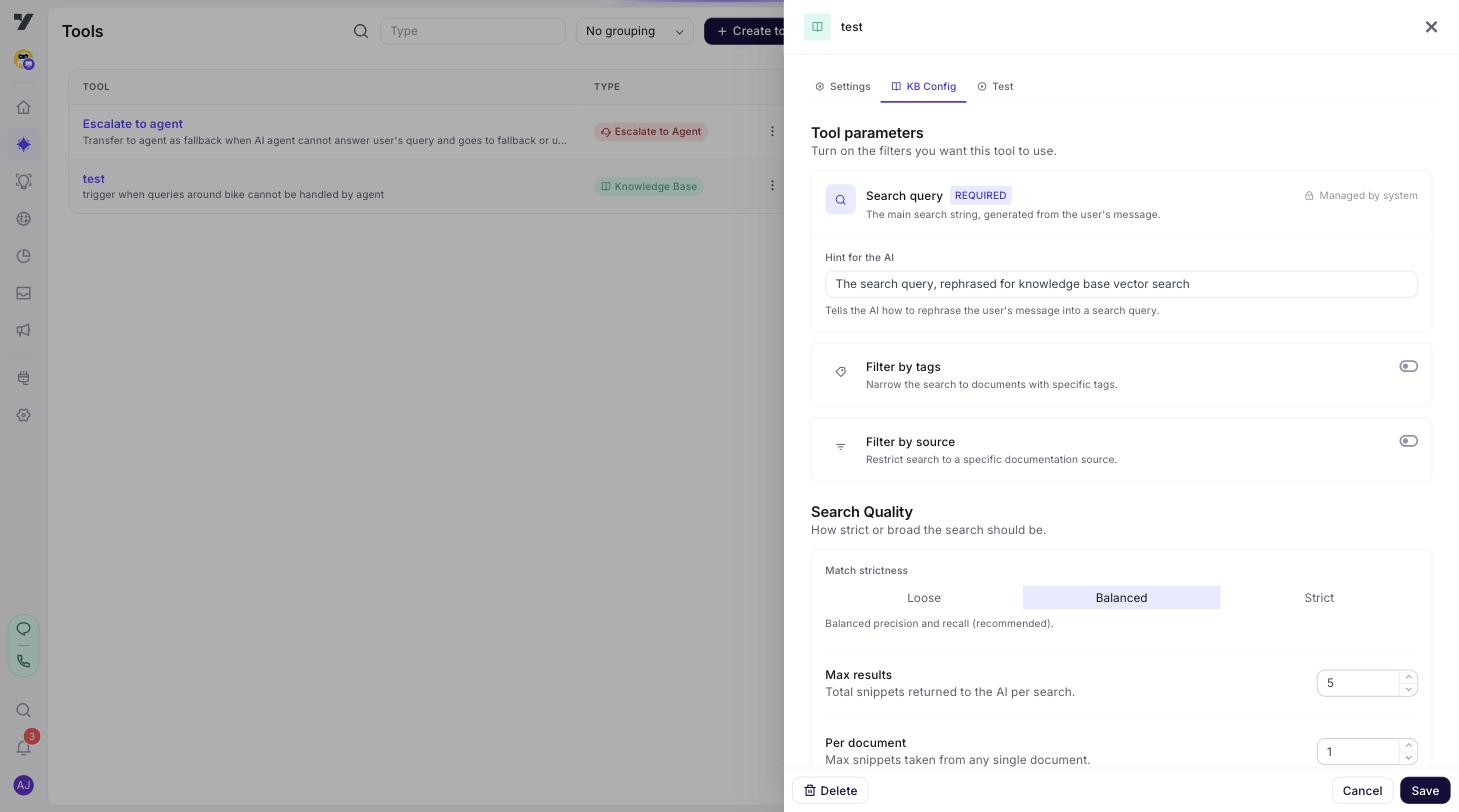
Step 4: Define input schema
KB tools have a fixed input shape — typically just { query: string }. You can edit the query description to bias what the LLM extracts:
"The user's natural-language question, rephrased into a clear, standalone search query."
This nudges the LLM to clean up vague questions before searching.
Step 5: Test before saving
Switch to the Test tab. Provide a sample query (think of a real user question). Run it.
You'll see:
- The retrieved chunks with their confidence scores.
- The composed reply.
- Whether the cached-answer path fired (if enabled).
Try several queries — including obvious ones, edge cases, and things you know aren't in your KB (the agent should say it doesn't know, not hallucinate).
Step 6: Save
Click Save. The KB tool is now available to any agent in this bot.
Step 7: Tell the agent when to use it
KB tools can be invoked implicitly (the LLM picks them up via the description) or explicitly (Routing Logic). For high-quality bots, do both:
- Write a clear description that mentions the domain ("product features", "troubleshooting", "pricing").
- Add a Routing Logic rule that names the trigger explicitly:
"If the user asks about product features, troubleshooting, or how to use a feature, you must use the product-docs-search tool before composing a reply. Do not answer from memory."
Best practices
- One KB tool per domain. Separate "Product Docs" from "Internal Policies" from "FAQs" with different tag filters. Cleaner, more predictable.
- Tune confidence with real queries. Sit down with a list of 30 representative questions and adjust until precision is high without dropping too many.
- Always enable conversation history for chat agents. Voice agents may want to skip it for latency.
- Don't expose internal-only docs. A KB tool with no filter sees everything. Be careful what's in your KB.
- Cite sources when it helps users. "According to the Pro Plan docs…" is more trustworthy than an unsourced statement.
- Use cached answers for stable FAQs only. Anything that changes (pricing, policies, hours) should go through the LLM path.
Common pitfalls
| Symptom | Likely cause |
|---|---|
| Agent says "I don't know" too often | Confidence threshold too high, or your KB doesn't actually have content for these questions. |
| Agent hallucinates facts | Confidence too low (low-quality matches still pass), or no KB tool wired so it answers from memory. |
| Wrong-domain results | No filter on the tool. Add tag/source filters to scope it. |
| Follow-up questions fall flat | "Use conversation history" is off. Turn it on. |
| Slow replies | Search size too high, or rich media is rendering large assets. Trim. |
Legacy reference
The legacy KB agent config doc describes a related v2 concept (KB agent, an entity rather than a tool). v3 uses the KB tool described above — same underlying retrieval, different configuration surface.