Escalation tools — Escalate to Agent & Transfer Call
When your agent can't resolve a request, it should hand off to a human cleanly. v3 ships two purpose-built escalation tools:
- Escalate to Agent — for chat conversations. Routes the user to a human agent in Inbox.
- Transfer Call — for voice conversations. Forwards the call to a human agent or SIP extension.
Configure both in AI Agent → Tools → Add Tool.
Why have a dedicated escalation tool?
You could trigger a workflow that does the handoff. But a dedicated tool gets you:
- A standardized config for collecting customer info before handoff.
- Priority and assignment rules built in.
- A clear LLM contract — the agent knows "this is the escalation path", not "one of seven workflows that might do something escalation-shaped."
Use the dedicated tool unless you have a very specific reason not to.
Escalate to Agent (chat)
This is the right tool when the user asks for a human, the agent recognizes a complex case it can't solve, or a Routing Logic rule sends them to support.
Step 1: Add the tool
AI Agent → Tools → Add Tool → Escalate to Agent.
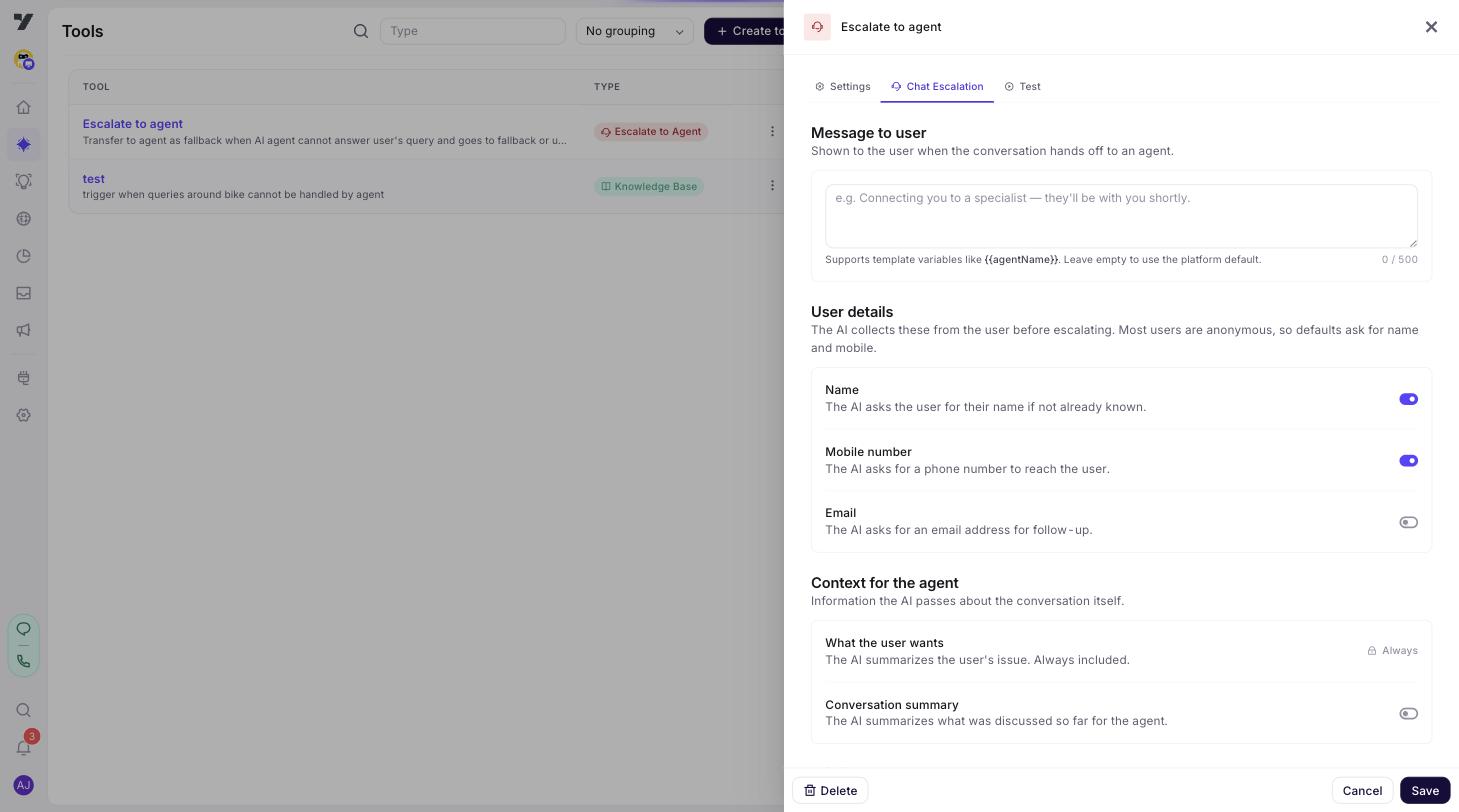
The drawer opens with Settings, Chat Escalation, and Test tabs.
Step 2: Settings — name and description
Name: something like escalateToSupport, transferToBilling, or talkToHuman.
Description: tell the LLM exactly when to call this. Example:
"Hand the conversation to a human support agent. Use this when the user explicitly asks for a human, when you've failed to resolve their issue after two attempts, or when they express strong frustration. Do not use this for billing questions — use the escalateToBilling tool instead."
Step 3: Chat Escalation tab
This is where you configure the handoff itself.
Priority and assignment
| Setting | Purpose |
|---|---|
| Default priority | low, medium, or high. Sets the ticket priority on creation. |
| Queue ID | The Inbox queue this escalation lands in. |
| Tags | Tags applied to the resulting ticket — useful for routing and reporting. |
| Assignment strategy | round-robin, least-busy, or specific-group. How the ticket is assigned. |
| Assign to group | The specific Inbox group when strategy is specific-group. |
Best practices:
- Set priority based on the trigger, not on optimism. Frustrated users escalating after multiple failed attempts are usually
high— notmedium"to be safe." - Use specific-group assignment for domain escalations (billing → billing group, technical → tier-2 engineering). Round-robin works for general support.
- Tag every escalation tool distinctly. Reporting later (e.g. "how often does the bot fail at billing?") is impossible without good tags.
Pre-handoff data collection
| Setting | Effect |
|---|---|
| Collect name | Agent asks for the user's name before escalating (if not already known). |
| Collect mobile | Same for mobile number. |
| Collect email | Same for email. |
| Require reason | The agent must capture why the user is escalating before handing off. |
| Require summary | The agent generates a short summary of the conversation for the human to read. |
The human agent in Inbox sees this info immediately on pickup — no "what's going on?" first message.
Best practices:
- Always require summary. Saves the human agent 30 seconds per ticket. Multiplied over a year, that's hours.
- Only collect contact info when needed. If the user is already authenticated and you have their email, don't ask again. The agent should be aware of session context.
- Require reason for non-obvious escalations. "User asked for a human" is enough context. "User is frustrated about <something>" needs a reason.
Custom fields
Add structured fields the agent should collect before escalating. Each custom field has:
- Name (e.g.
orderId) - Type (
string,number,boolean) - Description (LLM uses this to know what to ask for)
- Required (yes/no)
Use this for domain-specific data: order ID for shipping issues, account ID for billing, error code for technical bugs.
Escalation message
The message shown to the user as the handoff happens. Default is something neutral like "Connecting you to an agent now…". Customize it for tone or to set expectations ("A specialist will join in under two minutes…").
Step 4: Test
The Test tab simulates the escalation. You won't actually create a real ticket — you'll see the structured payload that would be created and any prompts the agent would say.
Step 5: Wire it in
Most teams want escalation to be deterministic, not at the LLM's discretion. Add a Routing Logic rule:
"If the user asks for a human agent, says 'agent' or 'human', or expresses strong frustration (e.g. 'this is unacceptable', 'I want to speak to someone'), call the escalateToSupport tool immediately. Do not try to resolve the issue first."
Transfer Call (voice)
For voice channels — when the user is on a call and needs a human.
Step 1: Add the tool
AI Agent → Tools → Add Tool → Transfer Call.
The drawer opens with Settings, Voice Transfer, and Test tabs.
Step 2: Settings
Name: transferToHuman, transferToBillingAgent, or similar.
Description: explicit, like in the chat case. The LLM uses this to decide.
Step 3: Voice Transfer tab
Action type
Pick one:
| Action | What it does |
|---|---|
| Forward call | Forward the call to a phone number (PSTN). |
| SIP transfer | Transfer via SIP to an internal extension. |
Forward is the right default. Use SIP when integrating with on-premise PBX or specialist routing systems.
Forward call settings
- Forward number — the destination phone number.
- Caller line identity — what the caller ID shows on the receiving end (typically the user's number, sometimes your own).
SIP transfer settings
- SIP extension — the SIP URI to transfer to.
- Custom SIP headers — key/value pairs for SIP-level metadata (e.g. customer ID, conversation summary).
Custom headers are how you pass conversation context into your contact-center stack so the receiving agent has it on pickup.
Recording action
What happens to the call recording when the transfer fires:
| Action | Meaning |
|---|---|
| Continue | Keep recording through the human portion. Default for compliance setups. |
| Pause | Pause recording during the human portion (resume after). |
| Stop | End recording at transfer. |
Pick based on your privacy/compliance posture. When in doubt, talk to legal.
Announcement
A spoken message played to the user just before the transfer ("Connecting you now…"). Customize the wording and tone — voice users notice handoff awkwardness more than chat users.
Step 4: Test
The Test tab simulates the transfer — you'll see the call-control instructions that would fire.
Step 5: Wire it in
Same pattern as chat — add a Routing Logic rule for explicit triggers:
"If the user says 'agent', 'human', 'representative', or asks to speak to someone, call the transferToHuman tool immediately."
Best practices for both
- Always have an escalation tool. A bot with no escape hatch is a bad bot.
- Make escalation deterministic with Routing Logic. Don't leave "user asked for a human" up to the LLM's interpretation.
- Collect just enough info upfront. Saves human agent time, but don't grill the user with five questions before handing off — frustration goes up.
- Tag escalations precisely. Reporting on "where does the bot fail?" depends on good tags.
- Test the path. Walk through an escalation end-to-end yourself in the Playground (▶ on any agent). The first time you actually try it shouldn't be in production.
- Voice and chat behave differently. Don't assume what's right for chat is right for voice. Voice users are less patient with announcements and pre-handoff questions.
Common pitfalls
| Symptom | Likely cause |
|---|---|
| Bot escalates too eagerly | Description is too broad, or no Routing Logic rule defines the trigger. Tighten both. |
| Bot never escalates | LLM doesn't see the trigger. Add a Routing Logic rule and use words real users say ("human", "agent", "representative"). |
| Human agent has no context on pickup | "Require summary" not enabled, or no tags on the escalation. Fix both. |
| Wrong queue / group | Assignment strategy or queue ID is misconfigured. Test in non-prod first. |
| Voice transfer drops the call | SIP headers / forward number formatting issue. Test against your PBX before going live. |
Legacy reference
The legacy Transfer to live agent doc covers v2 escalation. v3's Escalate to Agent tool is the equivalent and adds richer config.