Run tests
A run plays each test you pick against your agent as it is right now, and tells you which ones still pass. That's what turns a pile of tests into a safety net: run an agent's tests after every change to its instructions, tools, model, routing or knowledge - all of them, not only the one you were fixing, because a change that fixes one conversation can break another.
Nothing runs on a schedule. You start every run yourself, from the Testing Lab, from an agent's Tests button, or by asking the Nexus AI.
Start a run
- In the Testing Lab, select the tests you want to run. To run a dataset, filter by Dataset, then select all the tests it shows. To run one test, open it and click Run test.
- Click Run. The Run tests window lists what you're about to run.
- Choose the options you need (below), then click Run.
You're taken to Run history, where the run appears with its pass and fail counts as it goes. Open it when it finishes to read its report.
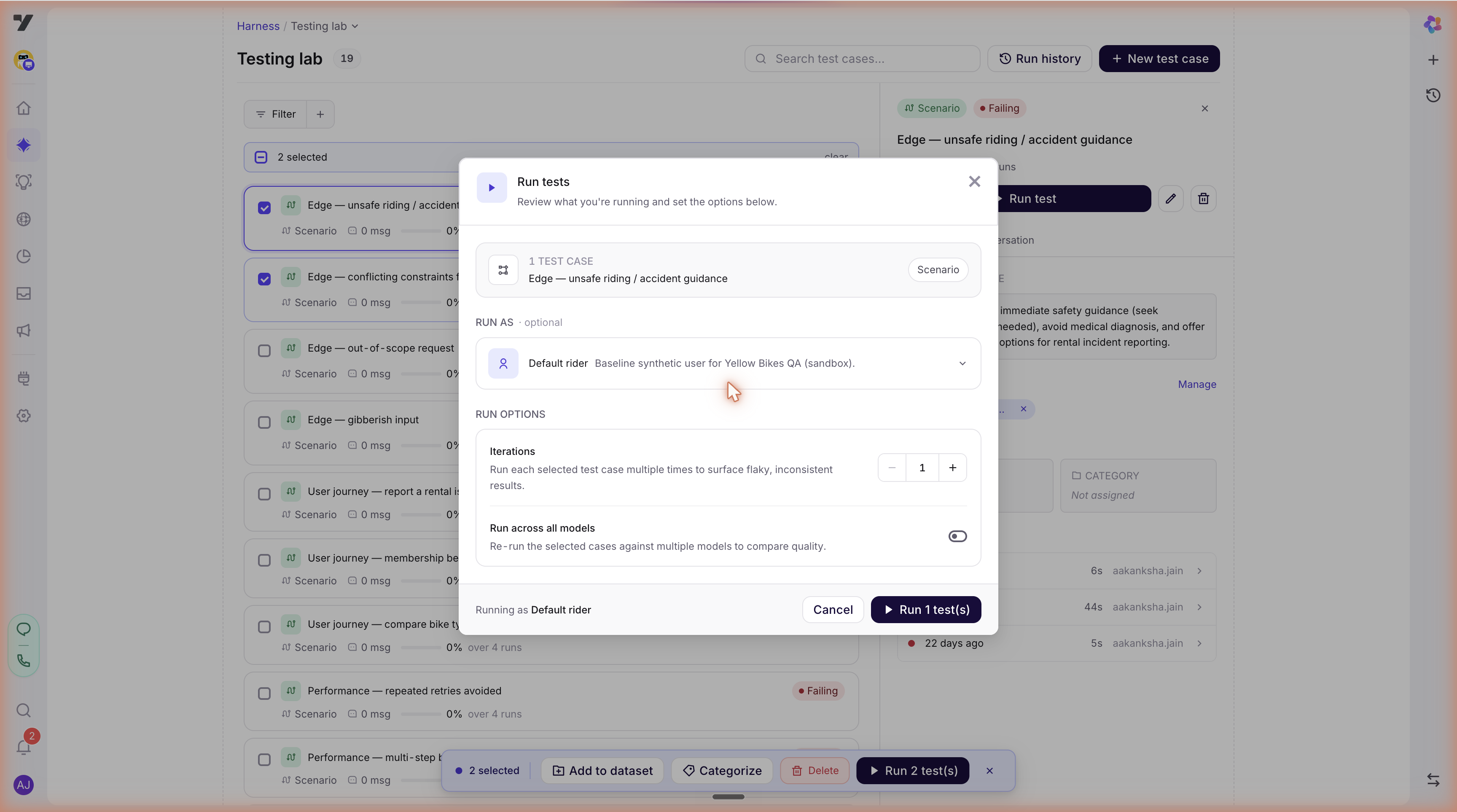
| Option | What it does | Use it when |
|---|---|---|
| Run as | Runs the tests as one or more saved user profiles - the customer details the agent sees, such as a signed-in account, a plan or a country. No profile runs them as an anonymous customer. | The agent should treat different customers differently. See below. |
| Iterations | Runs each test several times in the same run. | You want to know whether a result is consistent, not lucky. |
| Run across all models | Runs the tests against several models so you can compare how each does. | You're choosing a model, or checking a model change. |
| Enable Mocks | Uses the mock responses you've saved instead of calling your real systems. Off unless you turn it on, so by default a run calls your systems for real. | A system the agent calls is down or slow, you need it to fail on cue, or you don't want test runs touching real data. Add mocks with Mocks in the Testing Lab - see Mock APIs. |
Iterations is available when you've selected 10 tests or fewer, and can't be combined with several profiles.
Tip - a test that flips is telling you something. If a test passes on some iterations and fails on others, either the agent wavers - tighten its instructions - or the test is ambiguous about what counts as right. Fix it before you trust the dataset it's in.
Run the same tests as several user profiles
When a test should go differently for different customers - a monthly and an annual subscriber, a signed-in customer and a guest, one account per market - you don't need to start the run once per profile.
- Select the tests and click Run.
- Open Run as and tick every profile you want, up to 10. To make a new one, use Add a profile; profiles you create here are selected for you.
- Click Run. The window tells you what will happen - for example, Running once for each of 2 profiles · 2 test executions.
Each profile gets its own run in Run history, named after it - for example Custom run · 1 test (profile: Gold User) and Custom run · 1 test (profile: Premium User) - so you can compare results profile by profile.
Things to know:
- Iterations isn't available while several profiles are selected. Pick one profile to run a test several times.
- With Enable Mocks on, every profile's run uses the same mocks, so any difference comes from the profile and not from the mocks.
- Retry failed on one of these runs re-runs it as the same profile.
- Deleting a profile removes it from the selection.
After the run
Open the run from Run history and read it before you change anything. Reports explains what's in a report, and Read a run explains how to decide whether the agent or the test is wrong.
- Retry failed, at the top of a report, runs only the tests that failed - useful once you've fixed the cause.
- A run where every test shows Systematic error usually means a system the agent calls was down. It isn't a verdict on the agent: turn on Enable Mocks and run again.
- Results describe the agent as it was when the run happened. Once you change the agent, they're Outdated - run again before you rely on them.
From an agent's page
You don't have to leave the agent to work with its tests. The Tests button at the top of an agent's page shows how many tests belong to it. Click it to see:
- how many tests are linked to this agent
- how the latest run went, with a link to its report
- the progress of a run that's under way
- whether the Nexus AI is still drafting tests for it
It also flags when the tests aren't vouching for the agent right now:
| You see | What it means |
|---|---|
| Outdated | You've changed the agent since its tests last ran. The results describe the agent before that change. |
| Drafted, never run | The agent has tests nobody has run yet - usually ones the Nexus AI drafted. |
| No recent run | None of the bot's recent runs included these tests. They may have run earlier; check the Testing Lab. |
From there:
- Run Tests takes you to the Testing Lab with this agent's tests selected and the Run tests window open. Nothing runs until you confirm there. When the results are outdated, the button reads Re-run tests.
- View test cases opens the Testing Lab filtered to this agent. For tests that haven't run yet, it reads Review tests.
- Create test case appears when the agent has no tests yet. It starts a new test with this agent already filled in.
Sub-agents don't have their own Tests button. See Test signals on the agent page for more.
Daily limit
Each bot can run a limited number of tests in any 24 hours. A test run once counts as one; run it as several profiles, or several times over, and each of those counts. Once the bot reaches its limit, new runs won't start until earlier ones fall outside the last 24 hours.
Common problems
| Symptom | Likely cause | Fix |
|---|---|---|
| Iterations can't be changed | More than 10 tests are selected, or several profiles are. | Select 10 tests or fewer, and one profile. |
| Every test shows Systematic error | A system the agent calls was down or failing. | Turn on Enable Mocks and run again. |
| A test passes once and fails the next time | The agent wavers, or the test is ambiguous. | Run it with Iterations, then tighten the agent's instructions or the expected outcome. |
| Run Tests on the agent's page didn't start anything | It only opens the Run tests window. | Click Run in the Testing Lab to start the run. |
| A new run won't start | The bot has reached its daily limit. | Wait for earlier runs to fall outside the last 24 hours, or run fewer tests, profiles or iterations. |
| Results show as Outdated | You've changed the agent since the last run. | Run the agent's tests again. |
Next: Reports - read what a run found.