Agent functions
An agent function is a short piece of JavaScript that your AI agent runs when it needs custom logic: looking up a record, calling one of your systems, or preparing data before the agent replies. From its code, an agent function can work with your tables, call the APIs configured for your agent, and read and update global variables.
Where agent functions run
| Where | How it's called | Typical use |
|---|---|---|
| Agent tool | The agent decides to call it during a conversation and fills in the inputs. See Function tool. | "Where is my order?", "Book an appointment" |
| Function node | A flow reaches the node and passes in the values you mapped. | Validating input, saving a lead, formatting data |
| Run button | You run it from the editor with test values. | Testing while you build |
Before you start
Agent functions are available on v3 AI agents that have agent functions turned on. If Build → Functions → Add creates a function straight away without offering Agent functions, the option isn't enabled for your agent yet. Functions you've already created stay listed either way.
The other choice there, Classic functions, is the earlier kind: only a Function node in a flow can run it, and agents can't call it as a tool.
Create an agent function
- Go to Build → Functions and click Add.
- Choose Agent functions and give the function a name.
- Write a Description. Agents read it to decide when to call the function, so a function without one isn't offered to agents.
- Under Inputs, click Add input for each value the function needs. Give each one a name, a type (string, number, boolean, object or array), a description, and whether it's required.
- Write the code, then click Run to test it with sample inputs. See Testing and logs.
- Save. Then add it to an agent from the agent's tools, or add a Function node to a flow.
Only the inputs you declare reach the function. A call with an input that isn't declared, or without a required one, is refused before your code runs, and the agent is told why.
Structure of an agent function
Every function exports one default function. It receives two arguments and returns a result.
import { tables, apis, variables, crypto } from "@yellow/bot";

export default async function (inputs, context) {
  // your logic
  return { /* result */ };
}
Import only what you use from "@yellow/bot". It's the only module a function can import.
inputs
The values for this call: filled in by the agent, mapped by a flow node, or typed in when you click Run. It's always an object, so const { email } = inputs is safe even when nothing was passed.
context
Read-only information about the current conversation.
| Field | Description |
|---|---|
botId | The agent running the function |
sender | The user's ID on this channel |
sessionId | The current conversation session |
source | The channel, for example "whatsapp" or "yellowmessenger" (web) |
userMessage | The user's latest message |
profile, user | The user's profile and user properties |
callSid | The voice call ID. Empty on other channels. |
invokedBy | "agent", "flow" or "dev-run" (the Run button) |
agentSlug, journeySlug, nodeId | The agent, flow or Function node that made the call, when there is one |
When you test with Run, there's no conversation, so sessionId, messageId and userMessage are empty and source is "studio-dev-run".
Return value
What you return goes back to the agent, or becomes the output of the Function node. Return plain data: objects, arrays, text, numbers, true/false and null.
Tables, columns and APIs in code
You don't type table, column or API names. The editor suggests them, and the one you pick appears in your code as a label: a table as orders, a column as orders.email (table, then column), and an API as getOrderStatus.
const ORDERS = "orders";
const EMAIL = "orders.email";
const STATUS = "orders.status";
Behind each label the editor stores a permanent ID, so renaming a table or column later doesn't break your code.
Get suggestions
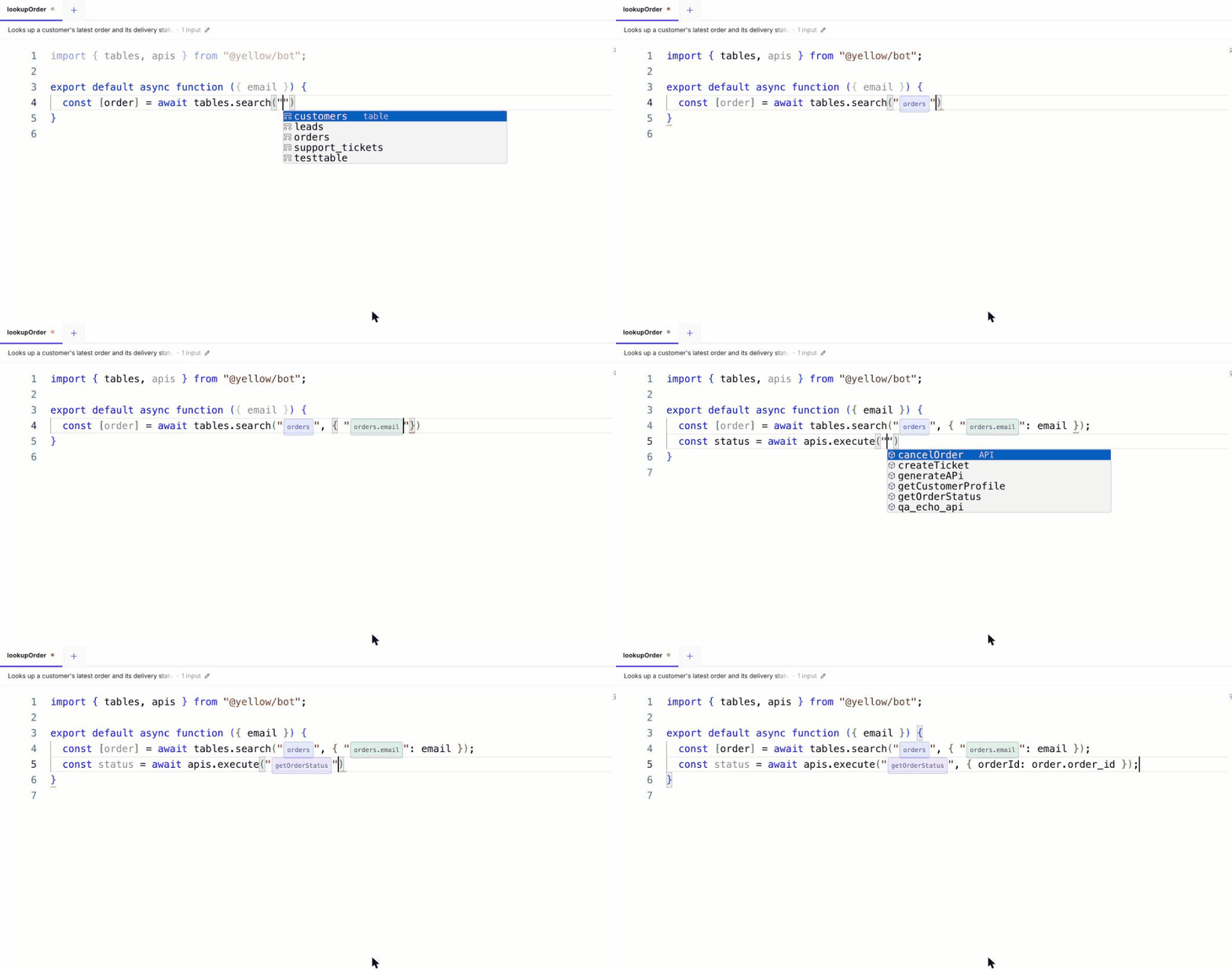
" after tables.search( for tables, "@ for columns, and " after apis.execute( for APIs.| Where you're typing | What to type | What you get |
|---|---|---|
The first argument of tables.search(, tables.insert( or tables.update( | " | Your tables |
The first argument of apis.execute( | " | Your APIs |
After column: or inside columns: [ | " | Your columns |
Anywhere else, for example a filter key, the fields of a row you insert, or set in an update | @, or "@ inside a string | Every table, column and API |
Keep typing to narrow the list by name, for example @ord shows orders and its columns. Press Enter to insert the highlighted one; the @ is replaced by the label.
await tables.search("orders", {        // typed " after search( and picked orders
  "orders.email": email,               // typed "@email and picked orders.email
});
Columns that aren't searchable are marked column · not filterable in the list. You can read and write them, but avoid using them in a filter.
Things to know
- A table, column or API name typed out by hand isn't recognised. The function stops with "column must be a Studio reference" or "api must be a Studio reference". Delete it and pick the name from the suggestions.
- Rows that come back from a search are keyed by column name, so you read
row.email, not the label. - In the examples on these pages, a quoted name such as
"orders","orders.email"or"getOrderStatus"is a label you insert from the suggestions. Copying an example's text doesn't insert the references; pick each one from the suggestions in your own editor, using your own table, column and API names.
What isn't available
Agent functions don't run in Node.js or a browser. fetch, setTimeout, setInterval, require, process, eval, atob and btoa don't exist. Use apis.execute for HTTP calls and Buffer.from(value, "base64") for base64. URL, URLSearchParams, Intl and Buffer are available.
Each run starts fresh: nothing in memory carries over to the next call. Keep anything you need later in a table or a global variable.
Saving checks your code. For example, every if, for and while needs braces, and eval isn't allowed. The editor shows what to fix.
Limits
These limits apply each time a function runs.
Calls
| Action | Limit per run | Details |
|---|---|---|
| Database searches | 5 | Up to 100 rows each (10 by default), so at most 500 rows per run |
| Database inserts | 5 | One row each |
| Database updates | 5 | Each may change at most 5 rows |
| API calls | 5 | |
| Calls running at the same time | 2 | Database and API calls together. A third call started while two are still running is refused. |
| Log lines | 30 | Label up to 100 characters; value shortened after 300 |
A call past one of these limits stops the function with an error that names the limit. The one exception is the number of rows: a search that asks for more than 100 rows returns 100, without an error. See paging.
Time and size
| Resource | Limit per run |
|---|---|
| Total run time | 60 seconds, including the time spent waiting for database and API calls |
| Computing time | 2 seconds of your own code running |
Code between two awaits | 0.5 seconds |
| Inputs | 4 MB |
| Return value | 10 MB |
A function that goes past one of these is stopped, and the error says which limit it hit.
Write efficient functions
- Ask only for what you use. Pass
columnsto a search so each row carries only the columns you read, and keeplimitas low as the job needs. - Filter in the database, not in your code. A filter in
tables.searchreturns only the rows you want; fetching every row and filtering them in a loop uses up your 5 searches. - Return only what the caller needs. A small result is faster for the agent to read.
- Run independent calls in pairs with
Promise.all, never more than two at a time. - Keep heavy loops short. Code that computes without an
awaitfor half a second is stopped.
In this section
- Work with tables: search, insert and update rows from an agent function
- Call APIs: call your configured APIs from an agent function and handle errors
- Use global variables: read and update shared values
- Crypto helpers: IDs, hashing, signing and encryption
- Test and debug: the Run button,
console, and logs in Analysis - Examples: complete agent functions you can adapt