Testing Lab

The Testing Lab is where you build the regression suite for your v3 bot. Open it from AI Trust Centre → Testing Lab.

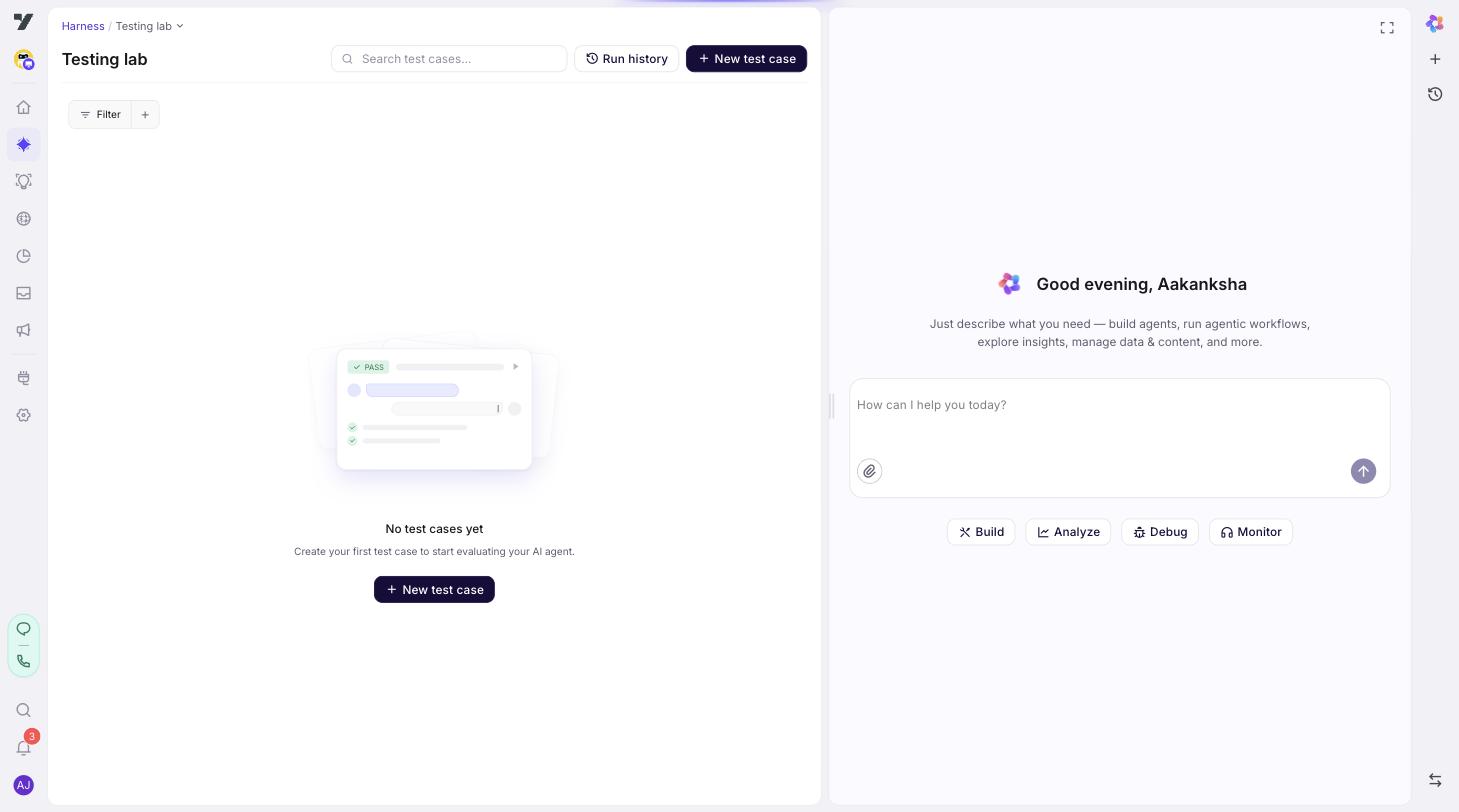
The empty state says "No test cases yet — Create your first test case to start evaluating your AI agent." From the toolbar:

  • Search test cases — full-text search across saved cases.
  • Run history — every dataset run with pass / fail counts; click into a run for per-case results.
  • New test case — opens the create drawer.

AI Trust Centre → Testing Lab page in its empty state, showing the "No test cases yet" message, the New test case button, the Run history entry, and Filter / + controls in the toolbar

Once you've added test cases, the same page shows the saved cases in a list with the per-case detail panel on the right:

Testing Lab populated with saved test cases — left pane lists each case with type icon, msg count, pass-rate over recent runs, and the dataset chip; right pane shows the selected case's Overview tab with Expected outcome, datasets, Properties, and Recent runs

How a test case is structured

Each saved case carries:

FieldNotes
NameHuman-readable. Use the question the case answers: "billing question routes correctly", "fallback fires on gibberish". Bad: "test 1".
User inputsThe messages a real user would send. One or many turns.
Initial stateOptional. Memory / user-profile values the test needs (e.g. customer_id, account_tier = "gold").
Expected outcomeWhat the case is asserting. Plain English plus the assertions you pick (see Assertion picker).
Source referenceWhich agent / dataset / surface this case belongs to. Used by filters and deep-links.
Baseline traceCaptured automatically on creation (for cases created via Trial run) — see Baseline capture.
Run statusready / stale — see Run status semantics.

Cases live inside datasets. A dataset is a named bundle you run together (e.g. "Pre-release smoke suite", "Adversarial inputs"). One case can belong to multiple datasets.

Creating a test case — two routes

Click New test case. The drawer has two tabs:

Import content

New test case drawer on the Import Content tab — four content-type cards (Chat Transcript, Email, CSV File, Generate with AI) and an Import from conversation form with Session ID + User ID inputs and an AI Enrichment toggle

You bring an existing conversation in as the test case — usually faster than typing it from scratch. Pick a content type:

  • Chat Transcript — import an existing conversation by Session ID + User ID from any past session.
  • Email — paste an email message or thread.
  • CSV file — upload a CSV with one or more conversations to bulk-import.
  • Generate with AI — seed from an agentic flow (similar to Scenario, but the LLM uses the agent's own flow definition as the prompt).

With AI Enrichment on (default), the platform auto-generates the test case name and expected outcome after import. Edit any field before saving.

Scenario (AI-drafted)

New test case drawer on the Scenario tab — Add to dataset selector, Title field, TEST INPUT section with User-role conversation flow and a Generate with AI button, EXPECTED BEHAVIOR section, and a USER PROFILE section

You describe what the case should check; the LLM drafts the conversation.

  1. Give a title hint (optional), the agent's goal, any conversation rules to apply, and the test inputs you want covered.
  2. Click Generate with AI. The LLM drafts:
    • A short user ↔ agent conversation (typically 2–6 turns).
    • 1–3 expected behaviours.
  3. Edit any field before saving — the draft is a starting point, not a contract.

💡 Try Copilot Nexus: "Draft 10 adversarial test prompts for my billing agent — jailbreaks, off-topic, hostile users, edge cases that exploit ambiguous policy."

💡 Try Copilot Nexus: "Generate a Scenario test case where the user asks about returns mid-flow during a refund request."

Trial run review (v3)

On a v3 bot with a known target agent, composing a case (from either tab) doesn't save it straight away — it first routes through a Trial run preview. The platform runs the case against the live agent, streams each turn back as it goes (user message, agent reply, trace events), and captures the result as an immutable baseline (see Baseline capture). For imported chat logs and CSVs it uses replay mode — the captured user turns are replayed verbatim instead of being re-paraphrased, which roughly halves the wait.

Once the preview finishes, the Assertion picker opens so you can choose which suggested assertions ship onto the case, then click Approve to save.

v2 bots and agentless drafts skip this step and save directly — no baseline, no suggested assertions.

Assertion picker

When a case routes through the Trial run preview, the backend proposes a set of suggestedAssertions — checks that would have passed against the trace it just captured. Examples:

  • "getOrderStatus tool was called on turn 2"
  • "Final response contained the tracking number"
  • "Bot did not invoke the transferCall tool"

The picker lets you tick which suggestions ship onto the saved case:

  • Turn-anchored suggestions (tool_called with turnIndex) render inline beside the matching agent message, with the same card chrome as the trace events panel.
  • Non-turn-anchored suggestions live in a panel below the conversation.
  • The picker pre-filters out internal $$ memory paths and trivial max_turns suggestions — you can still pick them if you want, but they're noise by default.

Only the assertions you check are written to the case. Everything else is treated as informational signal, not a hard pass/fail criterion. The bulk-approve paths apply the same filter automatically.

Baseline capture

When a case routes through the Trial run preview, the backend stores the full execution trace as a baseline (a SimulationReport flagged isBaseline). The baseline gives the Test Case detail page something to pair each agent message against (tool calls, memory updates, per-turn metrics).

Baselines are immutable — re-running a case produces new trace data, but the original baseline stays so you can always diff against the moment the case was captured.

Run status semantics

A case is either ready (inputs unchanged since the baseline — safe to run) or stale (inputs the case references — memory keys, user-profile fields, variables — were renamed, retyped, or removed in the agent config after the baseline was captured; the case will still run but the result may not be comparable to the original baseline).

The Testing Lab table surfaces a stale chip on affected rows, and the same signal appears as a banner on the Test Case detail panel. Either re-capture the baseline (Trial run with the new inputs) or accept the staleness if the change was intentional.

Run a dataset

From the toolbar, click Run on a dataset (or use the bulk-select-and-run flow when multiple datasets are selected). The Run tests modal lets you set run options before queuing:

Run tests modal — shows the selected test case(s), a "Run as" dropdown (synthetic-user persona), an Iterations stepper, and a "Run across all models" toggle for comparing model variants in one run

  • Run as — pick a synthetic-user persona (defines tone, vocabulary, and error patterns for the simulated user side of the conversation).
  • Iterations — how many times to run each selected case; higher counts surface flakiness.
  • Run across all models — run the same case against multiple model variants to compare quality side-by-side.

The run goes to a queue and the Run history entry updates with live pass/fail counts. Click any historical run to drill into Reports for per-case results.

Manage tests from the Conversation Builder

You don't have to leave the agent surface to work with tests for it. The Conversation Builder (the v3 agent-flow editor) exposes a Tests button in its topbar that opens a popover with:

  • The number of test cases linked to this agent.
  • The latest run's pass / fail summary.
  • A live progress bar for any in-flight run (auto-polls every 5 seconds).
  • An AI-generation indicator when Scenario drafts are in progress.
  • Quick links to the Testing Lab (deep-link pre-filters the table by this agent and auto-selects its tests, ready for a one-shot "Run Tests" click) and to the Run detail page.

Starting a run from the popover broadcasts across open tabs — the Testing Lab refreshes everywhere without a reload. The popover also exposes a Create test case shortcut that opens the standard drawer pre-populated with this agent as the source.

This is purely a navigation convenience — the cases themselves still live under the Trust Centre.

Best practices

  • Aim for 10–30 cases first time. Cover golden paths, one case per Routing Logic rule, one case per tool, and 2–3 adversarial prompts.
  • Promote real failures into cases. A bug you found in the Playground is a test case waiting to happen. Use Import content → Chat Transcript to bring in the conversation that exhibited it (the Trial run preview captures its baseline), then assert the fix.
  • Don't run noisy datasets nightly. If a single flaky case is generating a pile of low-value failures every run, fix the case before scheduling. (Scheduled runs are a v2 follow-up.)
  • Tighten assertions over time. Start with "right agent fired"; once that's stable, add "response contained the tracking number"; once that's stable, add latency / cost assertions.

💡 Try Copilot Nexus: "Convert this Playground conversation I just had into a Testing Lab Scenario test case."

💡 Try Copilot Nexus: "Which tests in my regression suite are most likely to be redundant or flaky? Suggest pruning."

Read next: Evaluators & Rules — tune what counts as a pass on every run.