Voice settings
Note: Voice settings applies project-level - it applies to every agent in the bot, single and multi agents alike, not to one agent individually.
Voice settings is where you configure how your bot sounds and listens. It lives under its own top-level AI Agent → Voice section, on the Settings tab - alongside Telephony, and (where your region has custom voice models) Synthesize, Library, and Clone. It is not a sub-page of Configuration.
Step 1: Open Voice settings
In your bot, go to AI Agent → Voice and open the Settings tab.
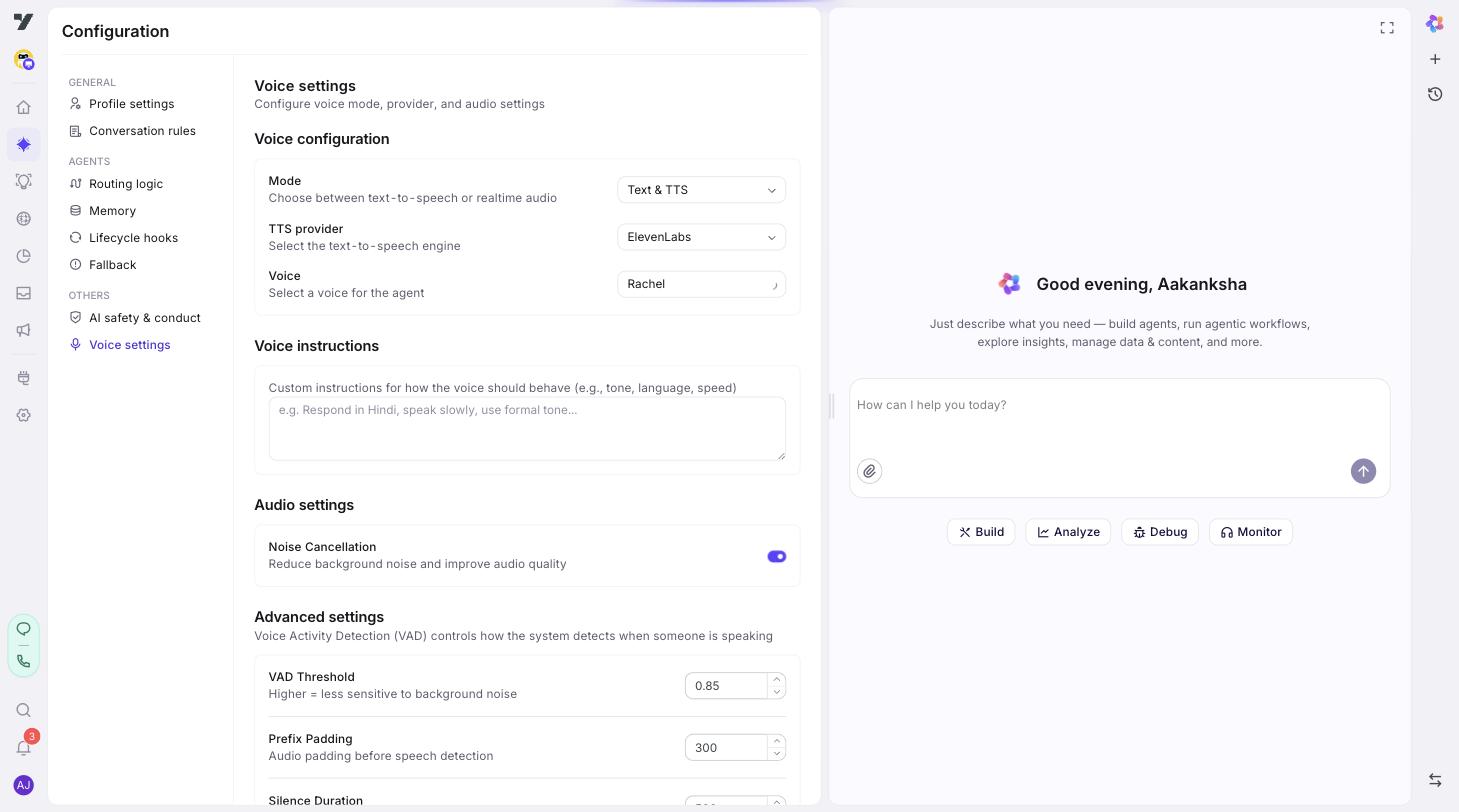
The page is split into four sections:
- Voice Configuration (mode, provider, voice).
- Voice Instructions.
- Audio Settings.
- Advanced VAD.
You can leave most defaults alone for a first build - the only sections you must touch are the first two.
Step 2: Pick a mode
The first decision is Mode. Two options:
| Mode | What you get |
|---|---|
| Text & TTS (default) | Speech recognized → text answered by your agent → text spoken back. Three independent stages, lots of provider choice. |
| Realtime Audio | Realtime audio API (OpenAI today; multi-provider adapters in flight for Gemini Live, Anthropic, MiniMax). Audio straight in, audio straight out - lowest end-to-end latency. Now supports registered tools (DynamicTool / MCP / KB), mid-call agent switch, greet-on-connect, per-turn traces. |
How to choose:
- Stick with Text & TTS when you need the widest provider catalog, broadest language coverage, and access to your custom voices.
- Pick Realtime Audio when end-to-end latency matters more than fine-grained provider control. With the May 2026 update, realtime has reached parity with pipeline mode on tools, agent switching, and traces - it's a viable production option for new builds, not just demos.
You can switch between modes any time. Each mode has its own voice and provider list, so you'll re-pick a voice if you change.
Realtime mode internals: routing is driven by the existing UI-editable
voiceOptions.mode === "realtime"field - no separate feature flag. Schema config (provider,audio.{input,output}SampleRate,audioFormat,greetOnConnect) is exposed through the same Voice Settings sub-page; defaults are sensible for the OpenAI provider.
Step 3: Pick a provider (Text & TTS mode)
The TTS Provider dropdown lists what's available for the speak-back stage. Currently:
| Provider | Notes |
|---|---|
| Yellow AI | The default. Good general quality, broad language coverage, and full access to your custom voices. |
| ElevenLabs | Premium voice quality, strong English. 10 built-in presets (Rachel, Domi, Bella, Antoni, Adam, etc.). |
| MiniMax | Multilingual presets including Mandarin, Japanese, French, Spanish. |
Speech-to-text (STT) provider is configured separately in pipeline runtime config. Yellow AI is the default STT choice.
Step 4: Pick a voice
The Voice dropdown shows every voice available for the chosen provider:
- Built-in presets (Rachel, Domi, Bella, etc. for ElevenLabs; Mandarin and multilingual options for MiniMax).
- Yellow's global curated voices.
- Your custom voices - anything you've cloned for this bot. See Custom Voices.
Click the play icon next to a voice to preview it before saving.
Best practice: match the voice to your audience. A persuasive sales bot wants a different voice than a calm support bot. Preview a few before committing.
Step 5: (Realtime Audio mode) Pick an OpenAI voice
If you switched to Realtime Audio, the voice list narrows to OpenAI's options: Alloy, Ash, Ballad, Coral, Echo, Sage, Shimmer, Verse, Marin, Cedar.
Each has a distinct character - preview to pick.
Step 6: Write voice instructions
The Voice Instructions field (≤500 characters) is freeform text that biases the bot's spoken behavior:
- "Respond only in Hindi, even if the user types in English."
- "Speak slowly and clearly. Pause briefly between sentences."
- "Sound friendly but concise - keep replies under two sentences."
Best practices:
- Use this for delivery (pace, tone, language); use bot identity for what to say.
- Don't repeat your bot identity here. Voice instructions layer on top.
- For multilingual bots, this is often the cleanest place to lock the spoken language.
Step 7: Audio Settings
There's currently one option here:
- Noise Cancellation - on by default. Suppresses background noise on the user's mic. Leave it on unless you have a specific reason (some studio setups can do better with raw audio).
Step 8: Advanced VAD (Voice Activity Detection)
VAD is what tells the bot "the user has finished speaking, my turn." Default values work for most calls; tune only if testing reveals a specific problem.
| Setting | Default | What it does |
|---|---|---|
| VAD Threshold | 0.3 | Sensitivity for detecting speech, 0-1. Higher = stricter (less likely to trigger on background noise but may cut off quiet speech). |
| Silence Duration | 500 ms | How long the user must be silent before the bot considers the turn ended (range 100-3000 ms). Lower = snappier, more interruptions; higher = more natural pauses, but a small delay. |
| Min Speech Duration | 100 ms | Minimum duration of detected audio to count as speech (range 0-1000 ms). Filters out brief noise blips so they don't falsely trigger a turn. |
Tuning by use case:
- Outbound sales / fast-paced chat → drop Silence Duration to ~300 ms; you'll feel more responsive.
- Slow / elderly / non-native speakers → raise Silence Duration to 700-800 ms so the bot doesn't cut them off.
- Noisy environments (vehicles, public spaces) → raise VAD Threshold well above the 0.3 default - try 0.6 first, and go higher (up to 1.0) if background noise still triggers false positives.
Step 9: Save
Click Save. The configuration applies to all conversations on this bot from the next call onward.
Best practices
- Pick the mode that matches your goal, not the newest one. Pipeline (Text & TTS) is right for most production bots.
- Preview voices before committing. A 10-second preview saves a lot of "this voice is wrong" feedback later.
- Keep voice instructions short and behavioral. This isn't where you re-state the agent's purpose.
- Don't change VAD without a measurement. Test the bot, find a specific problem, then tune. Random changes can make things worse.
- For multilingual bots, set the spoken language explicitly in Voice Instructions. Don't rely on auto-detection unless you've tested it on real calls.
Continue to: Custom Voices.