Test your voice agent
The Voice Playground is the fastest way to test a voice agent end-to-end. You can make a real test call right from your browser - no telephony setup required - and watch the live transcript as you talk.
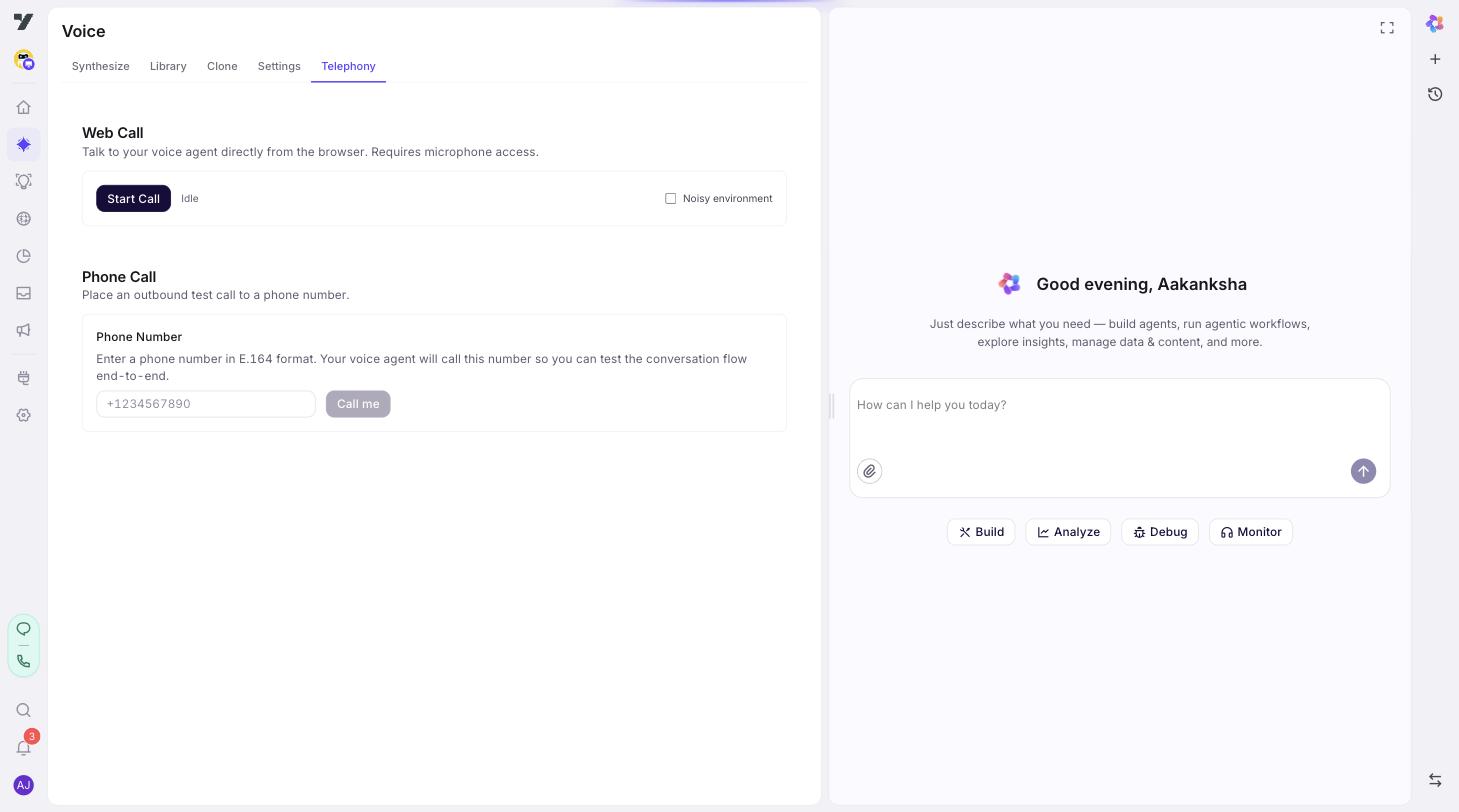
It lives in AI Agent → Voice → Telephony - the Web Call and Phone Call sections let you make a browser-based or outbound test call without any telephony provider setup.
Two ways to make a test call
| Mode | What happens | When to use |
|---|---|---|
| WebRTC (browser call) | Click Start Call and your browser becomes the phone. Audio in/out via your headset and mic. | Day-to-day iterating. No telephony provider required. Fastest loop. |
| Outbound call | Type a phone number and the bot calls it. Pick up on a real phone. | Hear the agent over a real PSTN call (codec compression, real network conditions) - note this test call goes out on Yellow's own test infrastructure, not your connected production number, so it doesn't verify your production caller ID or provider-specific routing. |
WebRTC is the default. Switch to outbound when you specifically need to test telephony.
Step-by-step: WebRTC test call
- Open AI Agent → Voice → Telephony.
- In the Web Call section, optionally tick Noisy environment - it applies client-side noise reduction to your mic before the audio reaches the server.
- Click Start Call. There's no inline Mode / TTS Provider / Voice ID picker on this panel - the call automatically uses whatever's already saved in Voice settings for this agent. Change those first if you need to test a different configuration. Note: Web Call always runs on Yellow's own STT/TTS models regardless of the voice provider configured for the bot, so it isn't a like-for-like test of every provider-specific behaviour.
- Speak into your mic. Watch the live transcript populate as your audio is recognized.
- The agent's reply plays back through your speakers.
- Click End Call when done.
Step-by-step: outbound test call
- Same setup as above.
- Type your own phone number into the Phone number field.
- Click Call me.
- Your phone rings. Pick up.
- Have the conversation as you would with a real customer.
- The transcript still shows live in the playground side panel.
Neither test path requires Telephony (a connected number under Extensions → Channels) - the outbound test call runs on Yellow's own call infrastructure, same as WebRTC. You only need a connected telephony number for real production calls to and from customers.
What to watch during a test call
The Voice Playground gives you several signals at once:
- The audio. Does the agent's voice sound right? Does the audio cut you off mid-sentence (VAD too aggressive) or feel laggy (VAD too patient)?
- The transcript. Did STT pick up what you actually said? Pay extra attention to names, numbers, and uncommon words.
- Latency. From when you finish speaking to when the agent starts replying. Anything over 2 seconds feels sluggish; under 1 second feels conversational.
- Tool calls. When the agent invokes a workflow, KB tool, or escalation, watch the transcript / replies for the resulting payload.
VAD isn't tunable from the Web Call panel
The Web Call panel has no inline VAD controls - the only control besides Start/End Call is the Noisy environment checkbox. Web Call tests also don't use the agent's saved production VAD values: they run against Yellow's own STT stack with a fixed, test-tuned VAD baseline that's deliberately different from the (typically Deepgram-tuned) values used in production, so timing here won't exactly match a live call.
To tune actual VAD behaviour, adjust it in Voice settings and verify with a real outbound or inbound call rather than the Web Call panel.
Step-by-step: reproduce a production voice issue
Voice issues are often hard to describe ("the bot was weird"). The Voice Playground turns vague reports into actionable bugs.
- Get the call recording or transcript from production.
- Open Voice Playground.
- Match the agent config (provider, voice, mode) to what production was running when the issue occurred.
- Replay the user's input as best you can - speak the same phrasing, or use outbound mode to play a recorded test prompt.
- Watch live transcript + traces.
- The first divergent step from the production trace is your bug.
Common failure patterns and what they mean
| Symptom | Most likely cause |
|---|---|
| Agent cuts you off mid-sentence | VAD Silence Duration too low. Raise to 700 ms. |
| Agent waits forever after you stop speaking | VAD Threshold too high or Silence Duration too high. Drop one or both. |
| Agent replies but with the wrong voice | Voice didn't propagate yet - re-save Voice Settings, refresh, retry. |
| Transcript misses obvious words | STT struggling with accent, background noise, or specific vocabulary. Try a different STT provider in pipeline config. |
| Long latency between turn end and reply | Either model slow path (model choice / prompt size) or TTS slow path. Try a shorter system prompt or a faster TTS provider to isolate which side is slow. |
| Audio sounds robotic in production but fine in playground | Telephony codec issue. Compare provider codec settings to recommended. |
What the playground doesn't catch
WebRTC test calls bypass the telephony stack - they sound better than a real PSTN call because they don't go through codec compression. Always do at least one real outbound call before declaring victory:
- Different codec, different audio quality.
- Real network conditions.
- Real-world background noise on the user's side.
A bot that sounds great in WebRTC but bad on a real phone is a regular issue.
Best practices
- Test every meaningful change with at least one WebRTC call. Voice doesn't translate from "looks right in chat" to "sounds right" - you have to actually hear it.
- Test in the deployment language, not just English. Voice quality and STT accuracy vary widely by language and accent.
- Build a small voice regression suite. Five real test prompts you replay every release: a golden path, a slow speaker, a noisy environment, a hostile prompt, and an escalation. Catches most regressions.
- Use outbound calls for telephony verification, WebRTC for everything else. Keep your iteration loop fast.
- Listen to real production calls regularly. Recordings (where compliant) are the truth. Playgrounds simulate; recordings show what shipped.
Continue to: Voice Best Practices.