Connect a WeChat Customer Service account (微信客服) to the platform. People write to the account from WeChat, your AI agent answers them, and your agents can reply from the Inbox. The connection goes through an app that you create in your company's WeCom (企业微信) admin console.
WeChat Customer Service can't show buttons, quick reply chips or swipeable carousels. This is a WeChat rule, and no platform can change it. Your AI agent's quick replies and cards still work, but they look different from the web widget or WhatsApp:
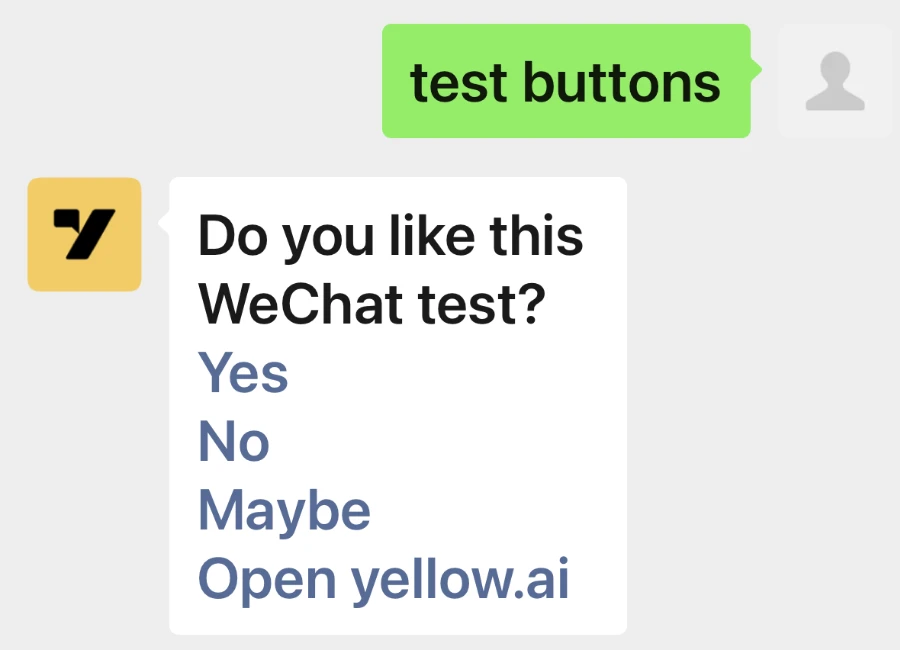
- Quick replies arrive as one message: the question, then each option as a blue line that the customer taps.
- A carousel arrives as one message per card, one under the other. Customers can't swipe through the cards.
- A card's picture shows only when the card has exactly one link button, or nothing but the picture.
- Each customer message allows up to 5 replies, so a carousel with many cards is cut off.
See How replies look in WeChat for what your customers see, and Limitations for everything WeChat doesn't support.
How it works
- A customer opens your WeChat Customer Service link or QR code in WeChat and sends a message.
- WeCom tells the platform that a new message is waiting. It does this through the Webhook URL that you save in WeCom.
- The platform fetches the message, and your AI agent replies to the customer in WeChat.
- Your agents see the conversation in the Inbox, under the customer's WeChat name and photo, and can reply there.
How replies look in WeChat
These screenshots were taken in WeChat on a phone.
Quick replies
WeChat shows quick replies as a menu message: the question, then each option as a blue line. When the customer taps an option, WeChat sends it back as the customer's reply, and your AI agent continues the conversation. An option with a link opens the link instead.
- A menu shows up to 10 options. Any more are left out.
- Option labels longer than 128 bytes (about 40 Chinese or 128 English characters) are cut.
Cards and carousels
Each card arrives as its own menu message: the card's title and text, then its buttons as blue lines. A carousel with three cards arrives as three messages.
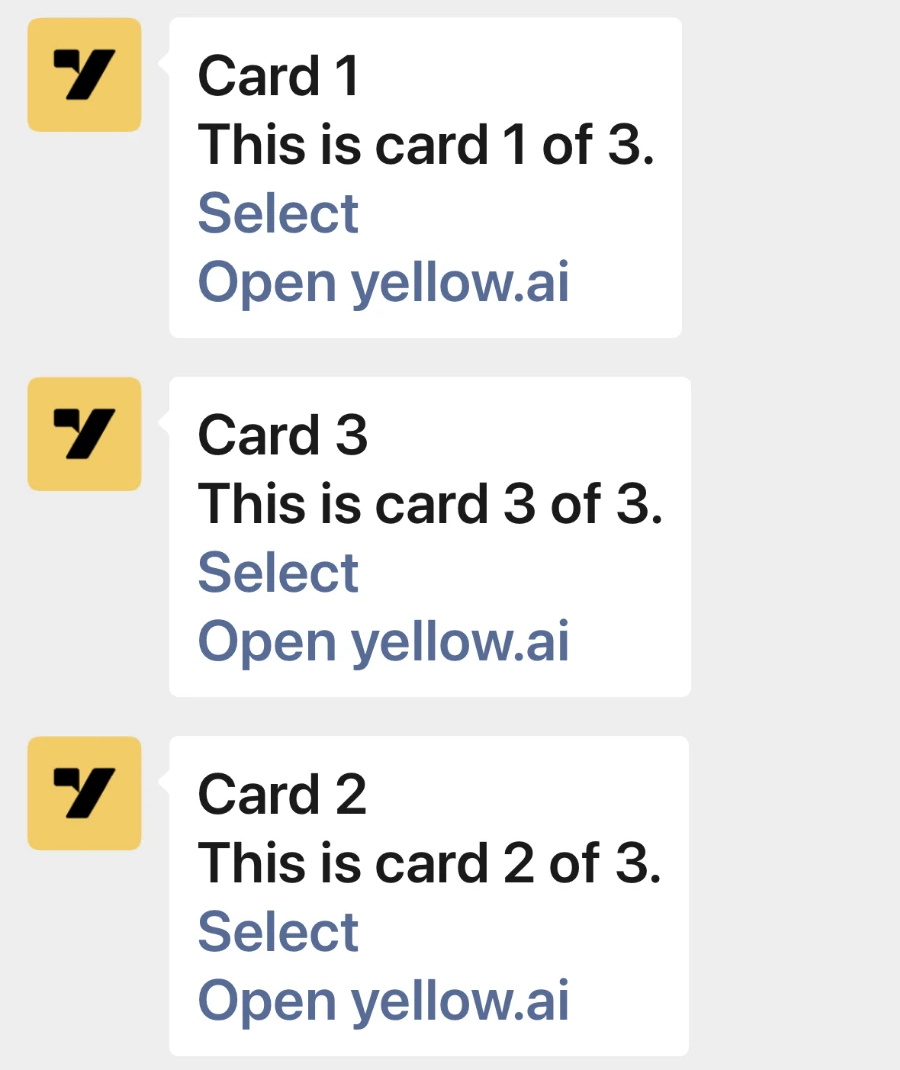
- Customers can't swipe through cards. They see one message per card.
- Each card counts as one of the 5 replies allowed per customer message.
- WeChat sometimes shows the cards in a different order, as in the screenshot above, where card 3 arrived before card 2.
Cards with pictures
WeChat can't show a picture and buttons in the same message, so:
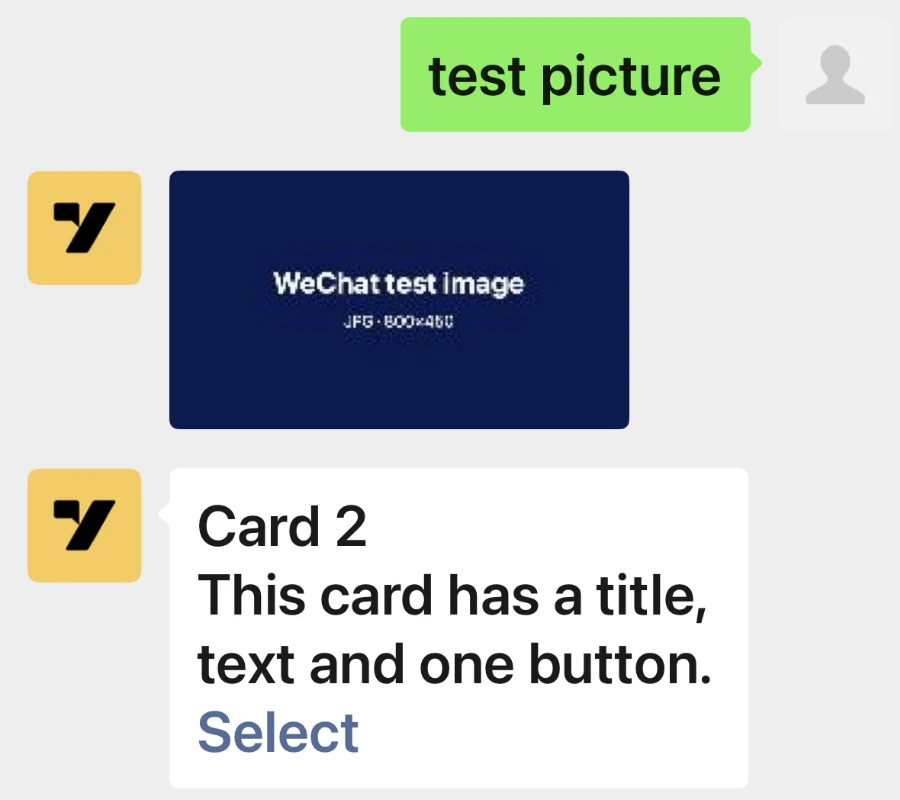
- A card with only a picture arrives as the picture.
- A card with a picture and exactly one link button arrives as a WeChat link card: the picture, the title and the text. Tapping it opens the link. Titles over 128 bytes and texts over 512 bytes are cut.
- Any other card arrives as its title and text, with its buttons as blue lines, or as plain text if it has no buttons. Its picture isn't shown.
Text, videos, files and links
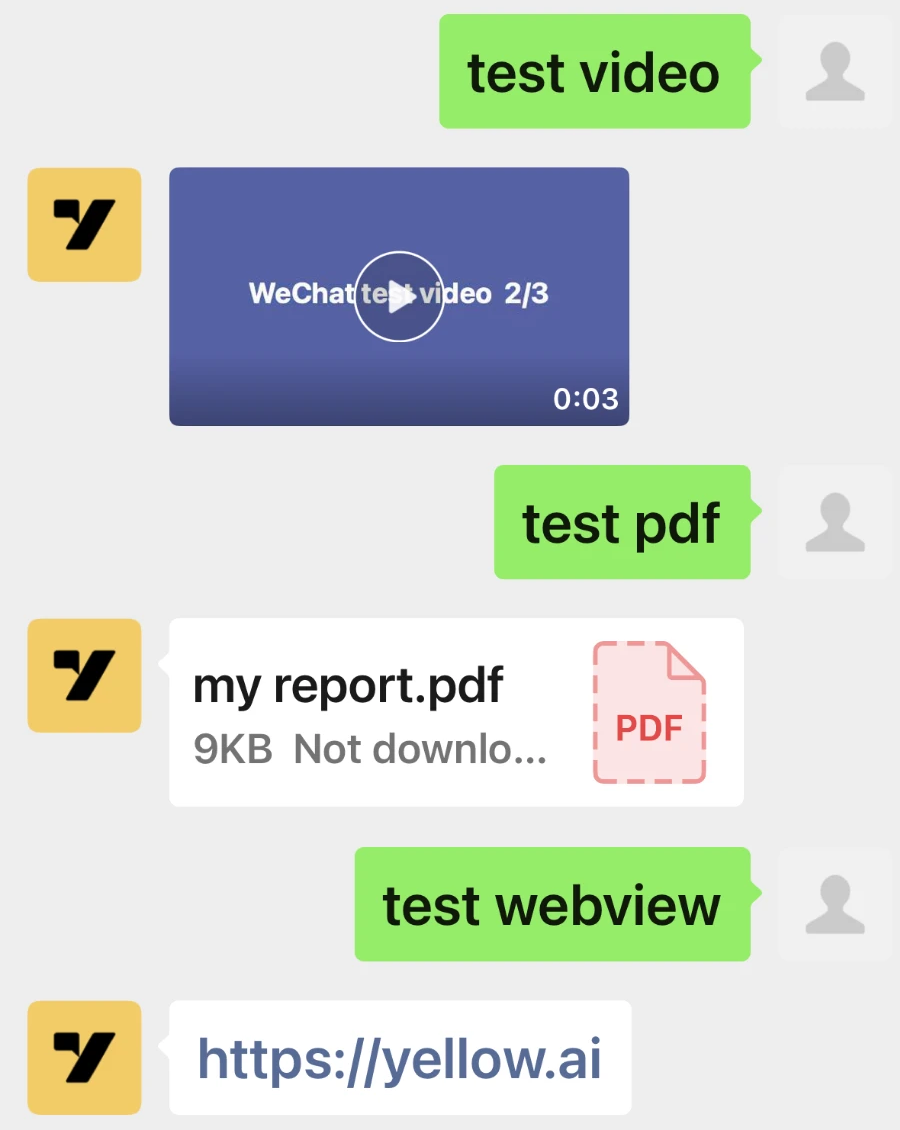
Text arrives as plain text, and formatting such as bold or headings isn't applied. Videos play in the chat, files arrive as a file to open, and web views arrive as their link.
Who it's for
- Admins set up the app in WeCom and connect it on the platform.
- Agents reply to WeChat conversations from the Inbox.
Before you start
You need:
- A WeCom organization, and an admin account that can manage its apps and WeChat Customer Service. The organization's super admin can do both.
- A WeChat Customer Service account in that organization, or the right to create one.
- At least one member signed in to the WeCom phone app with a phone number or with WeChat. A member who signed in with only an email address doesn't count. Until someone has signed in this way, WeChat doesn't deliver any reply.
- The region of your AI agent (r1 to r8), to allow the right IP addresses. Ask your Yellow.ai contact if you're not sure. WeChat isn't available for AI agents in the India region (r0).
- The AI agent and the environment that should answer WeChat, for example Staging while you test. Each environment has its own Webhook URL.
Keep the WeCom admin console (work.weixin.qq.com) and the platform open side by side. The WeCom admin console may be in Chinese, so the steps give each Chinese label in brackets.
The details you'll copy
| Detail | What it is | Where you find it |
|---|---|---|
| Corp ID | Your WeCom organization's ID, for example ww1a2b3c4d5e6f7a8b. WeCom calls it Company ID (企业ID). | WeCom: My Company (我的企业) > Company Information, at the bottom |
| AgentId | The number of the app you create, for example 1000002. | WeCom: your app's page |
| Secret | The app's password. | WeCom: your app's page. WeCom sends it to your WeCom phone app. |
| Token | A code that WeCom uses to sign the messages it sends. Up to 32 letters and digits. | WeCom: your app's Receive messages (接收消息) settings |
| EncodingAESKey | A key that WeCom uses to encrypt the messages it sends. Exactly 43 letters and digits. | WeCom: your app's Receive messages (接收消息) settings |
| Webhook URL | The address where WeCom tells the platform about new messages. | The platform: the WeChat page |
Connect WeChat
Follow the steps in this order. WeCom checks the Webhook URL the moment you save it there, and the platform can answer that check only after it has your app's details.
Step 1: Create the app in WeCom
-
Go to work.weixin.qq.com, click Login, and scan the QR code with the WeCom phone app.
-
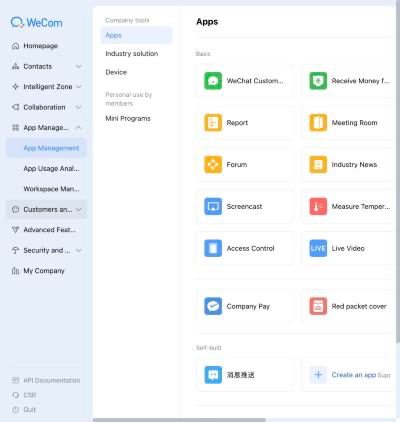
Go to App Management (应用管理) > Apps. Under Self-built (自建), click Create an app (创建应用).
-
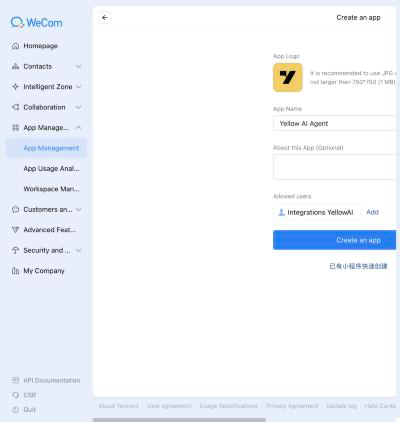
Upload an App Logo and enter an App Name. Under Allowed users (可见范围), click Add and choose who can use the app: include the people who answer your WeChat Customer Service chats (接待人员), or simply the whole company. If one of them isn't an allowed user, WeCom refuses the app's calls. Then click Create an app.
-
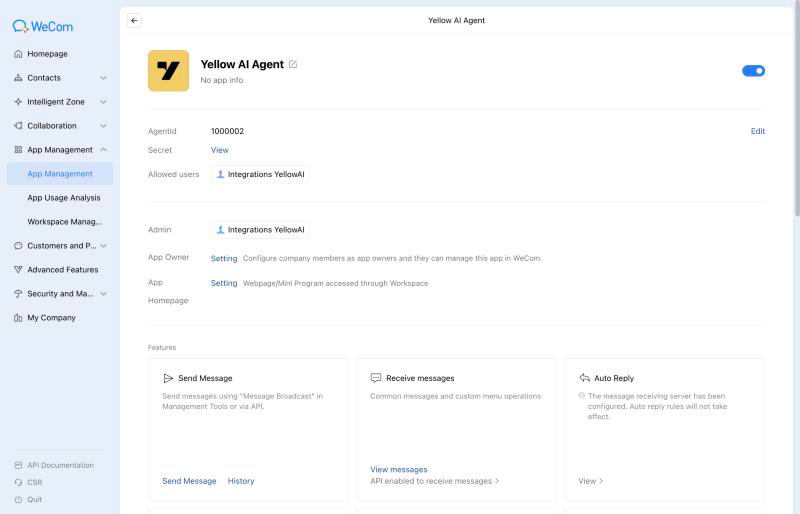
The app's page opens. Copy the AgentId.
-
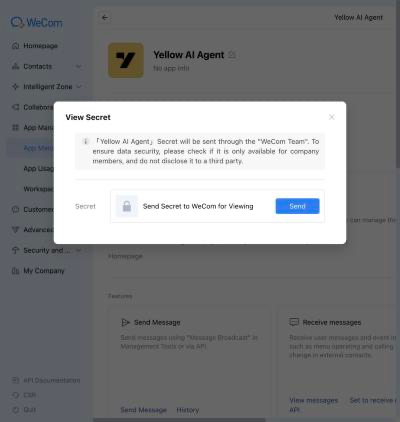
Next to Secret, click View (查看), then Send (发送). WeCom never shows the Secret on the website: it arrives in your WeCom phone app, in a message from WeCom Team. Copy it from there.
 note
Use the Secret of the app you just created. The WeChat Customer Service app has a Secret of its own, and it doesn't work here.
-
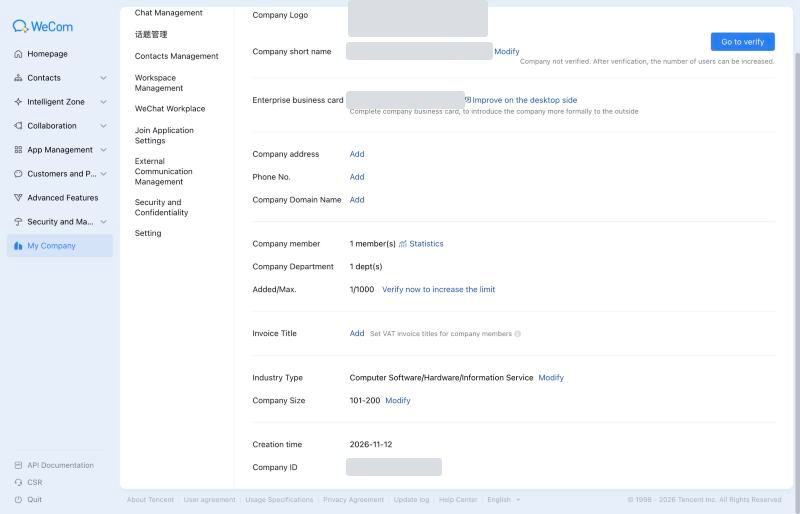
Go to My Company (我的企业) > Company Information, and copy the Company ID (企业ID) at the bottom of the page. The platform calls it Corp ID.
-
Go back to your app's page. On the Receive messages (接收消息) card, click Set to receive messages via API (设置API接收).
-
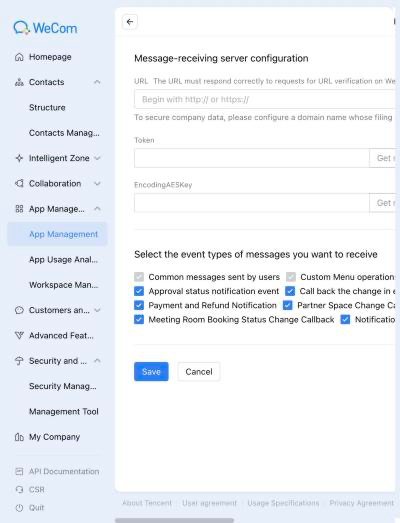
On Message-receiving server configuration, click Get randomly (随机获取) next to Token, and again next to EncodingAESKey. Copy both values.
-
Under Select the event types of messages you want to receive, tick WeChat Customer Service Messages and Events.
-
Leave this page open, and don't click Save yet.
Step 2: Connect the app on the platform
- Open the AI agent and the environment that should answer WeChat.
- On the switcher, click Channels. Click Messaging, then click WeChat.
- Enter the Corp ID (the Company ID you copied), AgentId, Secret, Token and EncodingAESKey, and click Save.
- The platform checks the Corp ID and the Secret with WeCom. When they're right, you see WeChat connected successfully, and the page shows your Corp ID and AgentId under Connected account. If you see an error instead, look it up in Troubleshooting.
- At the top of the connected account, click Webhook URL to copy it.
The Webhook URL is your region's address followed by your AI agent's ID, for example https://r6.nexus.yellow.ai/integrations/weChat/receive/x1234567890123. It stays the same each time you connect this AI agent, and it's also shown in the blue box above the form before you connect.
Step 3: Save the Webhook URL in WeCom
- Go back to the Message-receiving server configuration page that you left open.
- Paste the Webhook URL into URL.
- Check that Token and EncodingAESKey still show the values you saved on the platform, and click Save (保存).
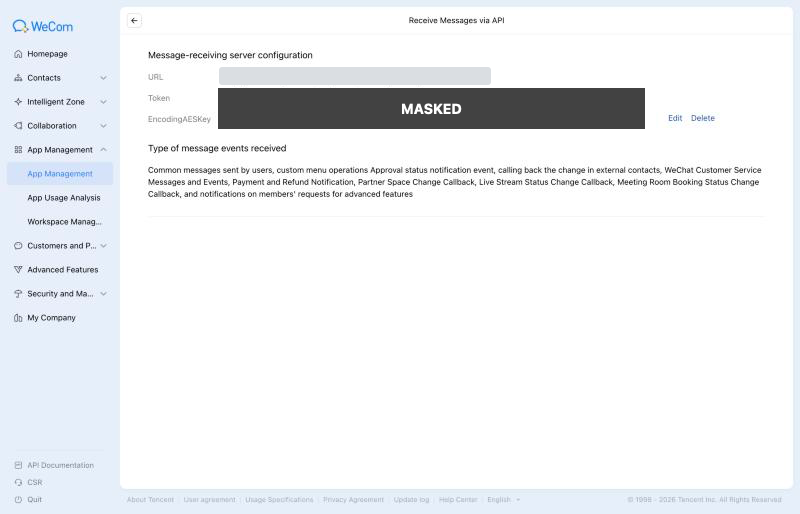
WeCom checks the URL as soon as you save. If WeCom says that the check failed, see WeCom says the URL check failed in Troubleshooting. Once the URL is saved, the page shows it under Receive Messages via API, with the event types you ticked. To change the URL later, click Edit.
Step 4: Allow the platform's IP addresses
WeCom accepts calls only from the IP addresses that you trust. Without this step, customers' messages don't reach your AI agent, and no reply is sent.
-
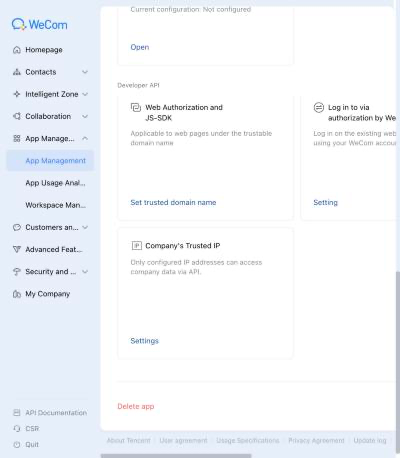
On your app's page, scroll down to Developer API. Under Company's Trusted IP (企业可信IP), click Settings.
-
Enter the IP addresses of your region, separated by
;, and confirm:Region IP addresses r1 129.151.139.158; 129.151.132.226 r2 108.136.205.230; 108.137.122.1; 108.137.171.143 r3 18.138.125.225; 18.139.149.20; 13.213.140.63 r4 35.84.216.215; 35.83.102.39; 34.212.108.52 r5 52.51.139.165; 54.73.244.109; 34.253.39.147 r6 20.173.116.38; 20.21.2.200; 20.21.131.95 r7 34.166.81.74; 34.166.146.65; 34.166.142.59 r8 145.241.139.22 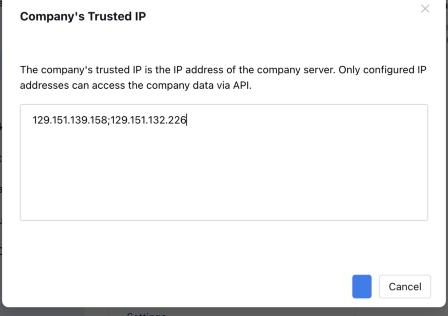
WeCom can take about a minute to apply the change. Do this step before step 5: until the IP addresses are set, WeCom shows Trusted IP not configured next to your app there.
Step 5: Give your WeChat Customer Service account to the app
-
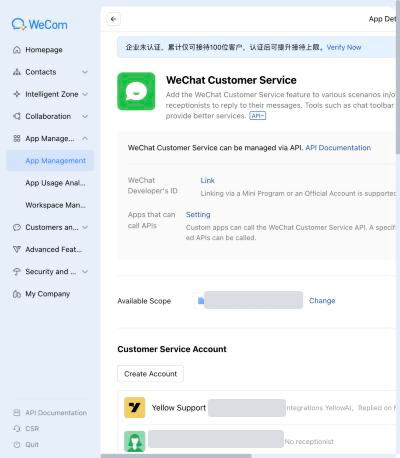
Go to App Management (应用管理) > Apps, and under Basic, click WeChat Customer Service (微信客服). If you don't have an account yet, click Create Account, and give it a name and a photo.
-
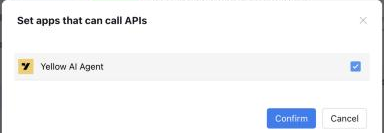
Next to Apps that can call APIs (可调用接口的应用), click Setting.
-
Tick your app, and click Confirm.
-
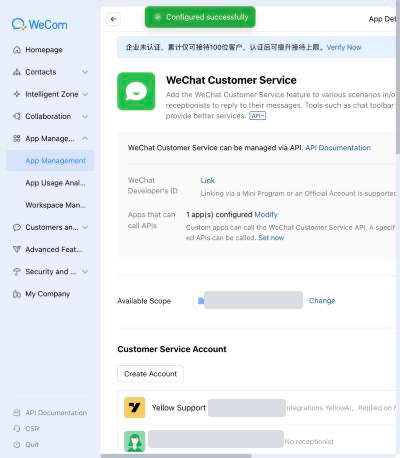
You see Configured successfully. Click Set now.
-
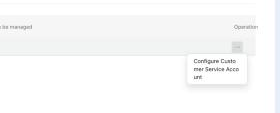
Under In-house development (企业内部开发), click … under Operation, then Configure Customer Service Account.
-
Select the WeChat Customer Service accounts that the app should manage, and click OK. Each account now appears next to your app.
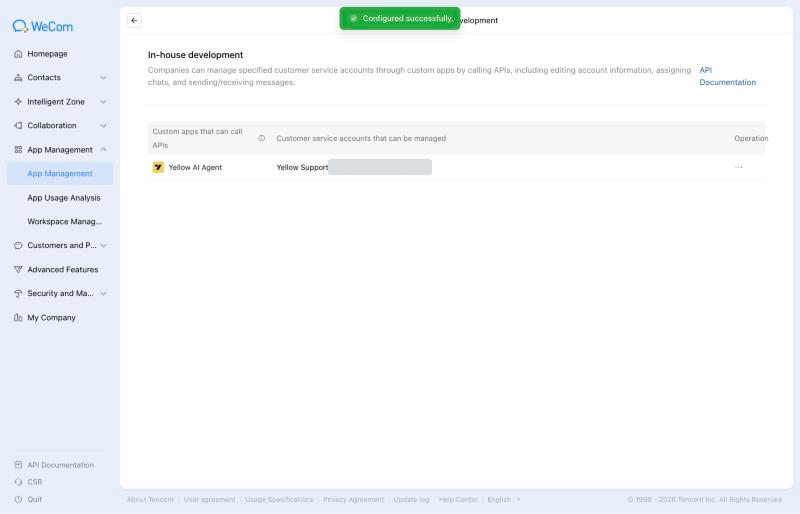
Once the app manages an account, WeChat's own reception rules for that account stop, and every conversation goes to the platform. An account can be managed by only one app at a time.
Step 6: Test the channel
-
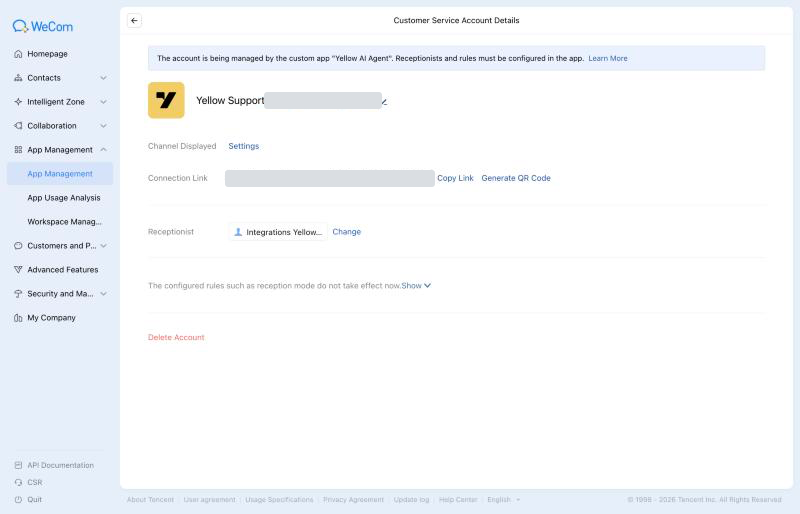
Open WeChat Customer Service (微信客服) again, and click your account. Its page says that the account is managed by your app. Next to Connection Link, click Copy Link or Generate QR Code.
-
On a phone, open the link or scan the QR code with WeChat, and send Hi.
-
Your AI agent replies within a few seconds. The conversation also appears in the Inbox, under your WeChat name.
What customers can send
| Customer sends | What your AI agent and agents get |
|---|---|
| Text | The text. WeChat's own emoji arrive as words in brackets, for example [微笑] (smile). |
| A tap on a menu option that your AI agent sent | The option, as if the customer typed it. |
| Image | The image. |
| Voice message | An AMR audio file. Most browsers can't play AMR, so download the file to listen. Your AI agent gets the file, not the words, so it can't answer what was said. |
| Video | The video. Some videos arrive as a file instead. |
| File | The file. |
| Location | The location. |
| Link | The link's title, description and address, as text. |
| Contact card | [Contact card] WeCom user, followed by the person's WeCom ID. WeCom doesn't share the name. |
| Mini Program | [Mini Program], followed by its title, app ID and page. |
| WeChat Channels product | For example [Product] Running shoes, ¥299.00, Shop name, product 3600001. |
| WeChat Channels order | [Order], followed by the products, price, status, shop and order number. |
| WeChat Channels post, live stream or profile | For example [WeChat Channels post], followed by its title and author. |
| Forwarded chat history | [Chat history] and its title, then one line per message with the sender's name and the text. Pictures and files inside show as [image] or [file]. |
| Meeting, calendar event or note | [Meeting], [Calendar event] or [Note]. WeCom doesn't share the details. |
| Anything else | Its type in brackets, so no message is lost. |
Each of these reaches your AI agent as a message that it can answer.
What your AI agent and agents can send
| Reply | How it looks in WeChat |
|---|---|
| Text | Plain text. WeChat allows 2,048 bytes per message, about 2,000 English or 680 Chinese characters, so a longer reply arrives as several messages. |
| Quick replies | A menu message, with each option as a blue line. See Quick replies. |
| Cards and carousels | One menu message per card. See Cards and carousels and Cards with pictures. |
| Images | JPG and PNG images up to 10 MB show as pictures. WebP images are changed to PNG first. GIFs and other formats arrive as a file, so they don't move. |
| Videos | MP4 videos up to 10 MB play in WeChat. Other videos arrive as a file. |
| Audio | AMR audio up to 2 MB arrives as a voice message. Other audio arrives as a file. |
| Files | Files up to 20 MB. |
| Location | A WeChat location. |
| Web view | Its link, as text. |
Images, videos, audio and files must be uploaded to the platform. Links to files on other websites aren't sent.
Limitations
WeChat's rules for conversations
WeChat sets these rules, and the platform can't change them:
- The customer writes first. You can't start a conversation, or send notifications, reminders or campaigns, on WeChat. Your AI agent and agents can only reply.
- Reply within 48 hours. You can reply only within 48 hours of the customer's last message.
- 5 replies per customer message. Each message from a customer allows up to 5 replies, until the customer writes again. A long text that is split, and each card of a carousel, count as separate replies. In the screenshot below, the AI agent sent six replies to one message, and WeChat delivered five.
- 100 customers until you verify. A WeCom organization that isn't verified can serve 100 customers in total. Verify your organization in WeCom to remove this limit.
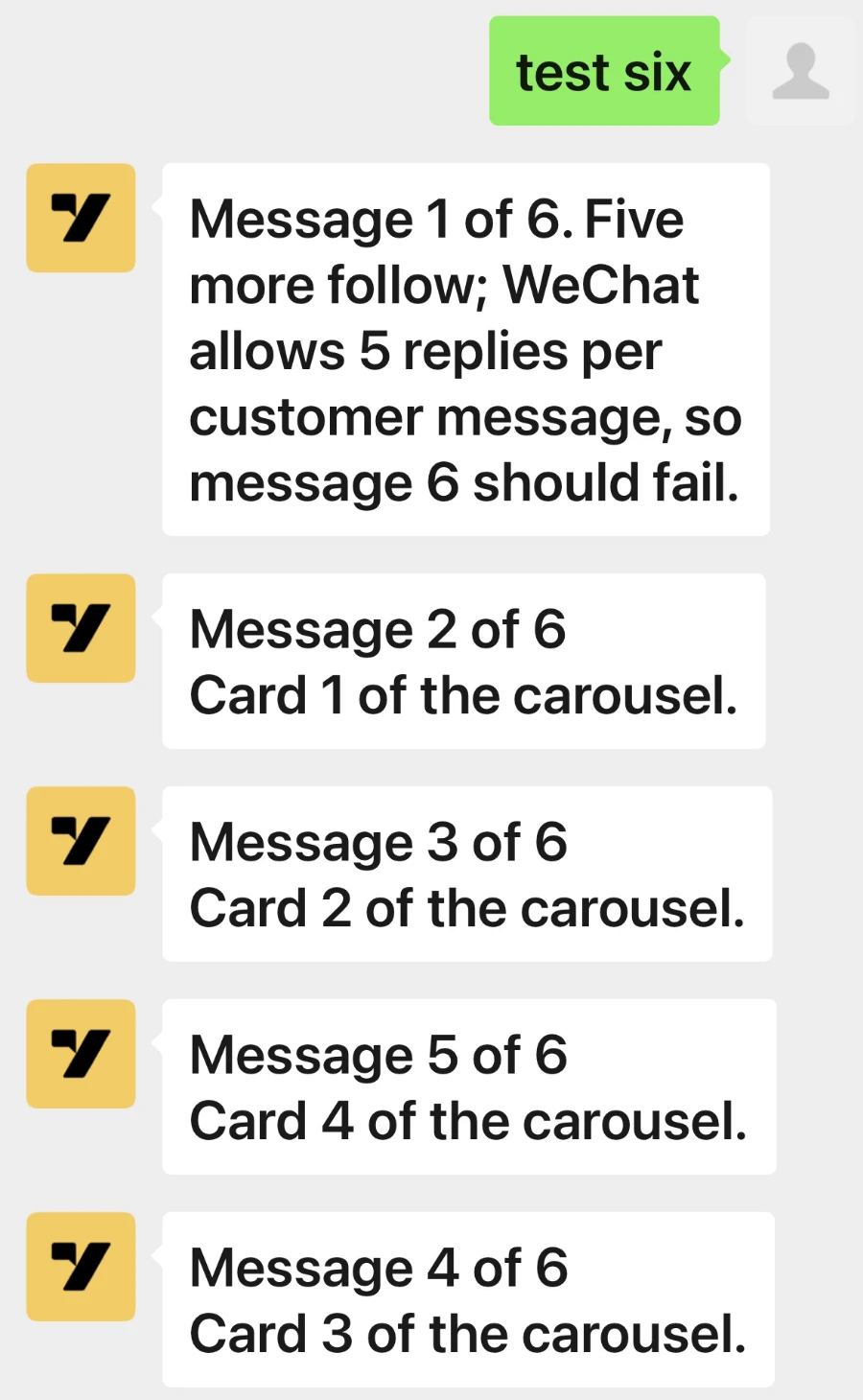
When WeChat refuses a reply, the reply is marked as failed in the conversation, with the reason. See Troubleshooting.
What WeChat doesn't show
- No buttons, quick reply chips or carousels. See How replies look in WeChat.
- No typing indicator. Customers don't see that a reply is being typed.
- No read receipts. You see whether a reply was sent or failed, but not whether the customer read it.
- No greeting when the chat opens. Your AI agent replies once the customer writes. Opening the chat on its own doesn't bring a greeting.
- No text formatting. Bold, italics and headings aren't applied.
- No moving GIFs. A GIF arrives as a file.
- Replies can arrive out of order. When a reply has several parts, such as a carousel, WeChat sometimes shows them in a different order.
Messages from customers
- WeChat's own emoji arrive as words in brackets, for example
[微笑](smile). - Voice messages arrive as AMR files. Most browsers can't play them, and your AI agent can't understand them.
- Some videos arrive as a file instead of a video.
- Contact cards show only a WeCom ID, and meetings, calendar events and notes arrive without their details, because WeCom doesn't share them.
- A message that the customer withdraws stays in the conversation.
- Messages sent before you connect aren't brought in.
Setup
- One app, one AI agent. A WeCom app has one Webhook URL, so it sends its messages to only one AI agent, in one environment. To move WeChat to another environment, for example from Staging to Live, connect WeChat there, save that environment's Webhook URL in WeCom, and then disconnect the old environment.
- One account, one app. A WeChat Customer Service account can be managed by only one app at a time, and WeChat's own reception rules for it stop once the app manages it.
- Not in the India region. WeChat isn't available for AI agents in r0.
- To change the details, disconnect and connect again. The WeChat page doesn't edit a saved connection. If you get a new Token or EncodingAESKey in WeCom, save the same values on the platform. If you reset the Secret in WeCom, connect again with the new one.
- Disconnecting doesn't change WeCom. It removes the app's details from the platform. Remove or change the Webhook URL in WeCom as well.
Troubleshooting
When you save on the platform
| Message | Why | What to do |
|---|---|---|
| This Corp ID does not look right or WeCom does not recognise this Corp ID | The Corp ID has a typo. | Copy the Company ID again from My Company (我的企业) > Company Information, and paste it into Corp ID. |
| WeCom refused this Secret for the Corp ID | The Secret is wrong or belongs to another app, or the app is disabled. | Next to your app's Secret, click View again, copy the Secret from your WeCom phone app, and check that the app is enabled. |
| This AgentId is not the app the Secret belongs to | The AgentId and the Secret come from different apps. | Copy both from the same app's page. |
| The AgentId is a number | The AgentId has extra characters. | Copy it again from your app's page. |
| The Token is up to 32 letters and digits or The EncodingAESKey is 43 letters and digits | The value was cut short or has extra characters. | Copy it again from your app's Receive messages (接收消息) settings. |
| WeCom refused these details 3 times. Wait 15 minutes | After 3 refusals, the platform waits 15 minutes before it checks again. | Wait 15 minutes, check the Corp ID and the Secret, and save again. |
| Could not reach WeCom or WeCom is busy | WeCom didn't answer. | Try again in a minute. |
When you save the Webhook URL in WeCom
| Problem | Why | What to do |
|---|---|---|
| WeCom says the URL check failed | The details aren't saved on the platform yet; the Token or EncodingAESKey differs from the one on the platform, for example because you clicked Get randomly again; or the URL belongs to another AI agent or environment. | Save the details on the platform first. Make the Token and EncodingAESKey the same on both sides: if you changed them in WeCom, disconnect on the platform and connect again with the new values. Copy the Webhook URL from the WeChat page of the AI agent that you connected. |
| WeCom doesn't accept the Webhook URL's domain | Some WeCom organizations accept only domains that are registered (ICP) under their own company. | Contact your Yellow.ai team. |
After you connect
| Problem | Why | What to do |
|---|---|---|
| Customers' messages don't reach your AI agent | The IP addresses aren't trusted or are for another region, the account isn't given to the app, or the Webhook URL isn't saved in WeCom. | Check steps 3, 4 and 5, and check that the IP addresses are for your AI agent's region. |
| A reply fails with No WeCom member has logged in to the WeCom app | Nobody in your organization has signed in to the WeCom phone app with a phone number or with WeChat. | Sign in to the WeCom phone app with a phone number or with WeChat. |
| A reply fails with More than 48 hours since the customer last wrote or WeChat allows 5 replies per customer message | WeChat's rules. | Wait for the customer to write again. |
| A reply fails with The WeCom company is not verified | WeChat limits organizations that aren't verified. | Verify your organization in WeCom. |
| A reply fails with The customer refused messages | The customer turned off messages from your account. | Nothing to do. |
| A reply fails with WeCom … failed: 60020 | WeCom doesn't trust the platform's IP addresses. | Add your region's IP addresses, as in step 4. |
| A reply fails with WeCom … failed: 60030 | Someone who answers the account's chats can't see your app. | Add them, or the whole company, under Allowed users (可见范围) on your app's page. |
| A reply fails with another WeCom … failed code | WeCom refused the call. | Look up the code in WeCom's error codes. |