Product Search tool
The Product Search tool lets your agent find products in a catalogue you have indexed in the Knowledge Base, by filtering on the metadata tags of each product page or file: category, sub-category, product name, SKU, price, and so on.
Unlike the Knowledge Base tool, it does not do a semantic search over text. Every parameter is a typed condition on a tag, so the results are exact: "category equals Gloves and product name has the words scrub pants". That makes it the right tool for "do you have…", "show me options for…", "find the product with SKU…", and for guiding a user from a vague request down to a short list.
Before you start
The tool searches the Unified Knowledge Base. Make sure:
- Your catalogue is indexed as Unified KB files (for example a sitemap of product pages).
- The files carry metadata tags, either filled manually, imported, or produced by auto tagging. Tags are what the tool filters on; a file with no tags cannot be found.
- Each tag has a description in the Knowledge Base metadata settings. The tool sends that description to the AI, so you do not have to retype it per tool.
Step 1: Add the tool
Go to AI Agent → Tools → Add Tool and pick Product Search under Core Built-in.
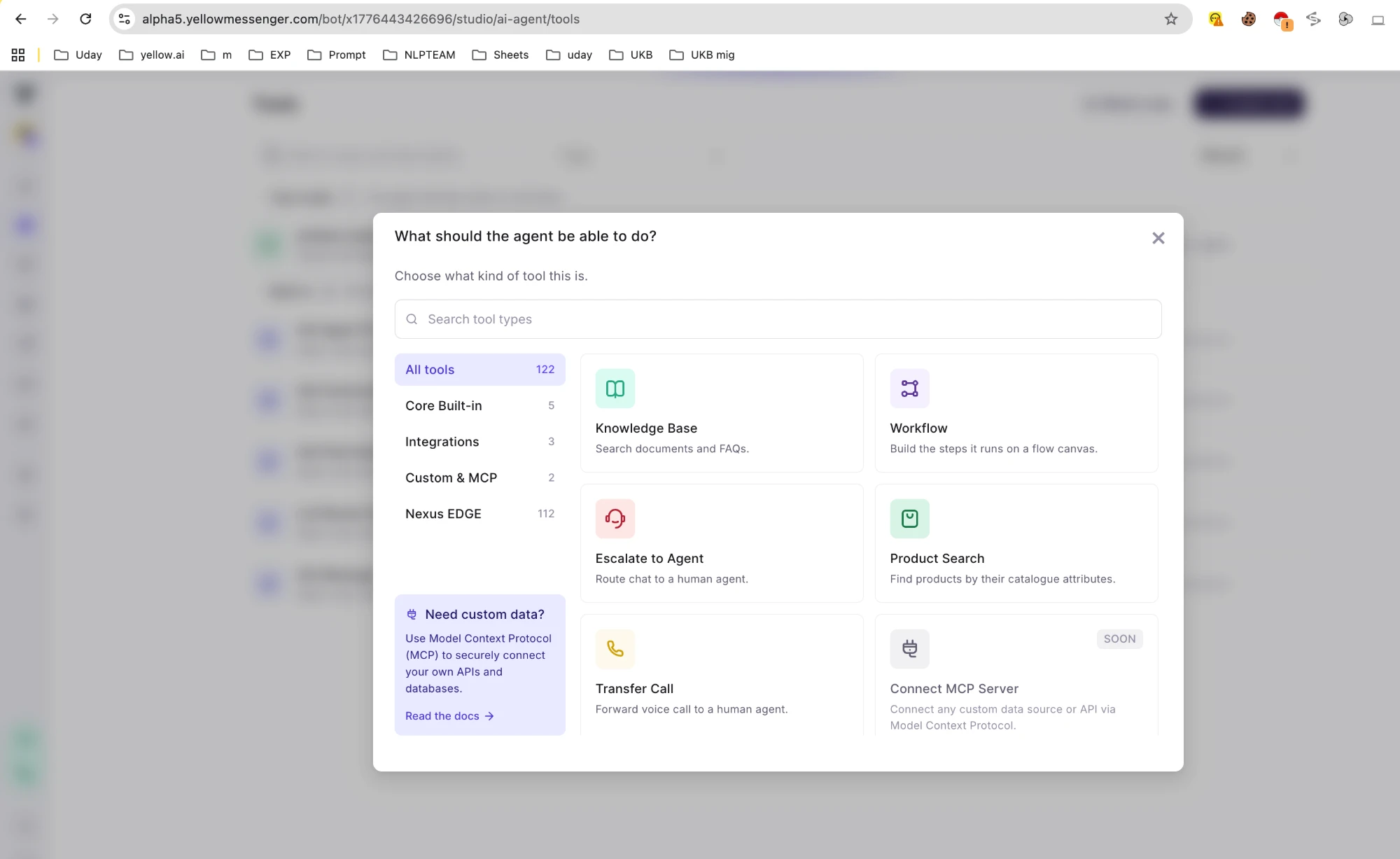
Give it a name and a description, then open the tool. The drawer has three tabs: Overview, Build and Test.
Step 2: Overview, when to use it
The When to use it text is what the AI reads to decide whether to call the tool at all. Name the catalogue, a few of its categories, and the kinds of requests that should trigger a search. Say what it is not for, so the AI does not reach for it when another tool should answer.
Search the Medline At Home product catalogue (medical supplies: gloves, scrubs, mobility aids, wound care, incontinence, first aid). Use it whenever the user asks for a product, wants options or recommendations, mentions a product name, type, category or SKU, or asks whether something is available or FSA/HSA eligible. Also use it to list the categories or sub-categories when the request is vague. Do not use it for general health advice or order status.
The right-hand pane shows What the agent sees: the exact parameter schema sent to the model. It updates as you change the Build tab, so you can check what the AI will be asked to fill in.
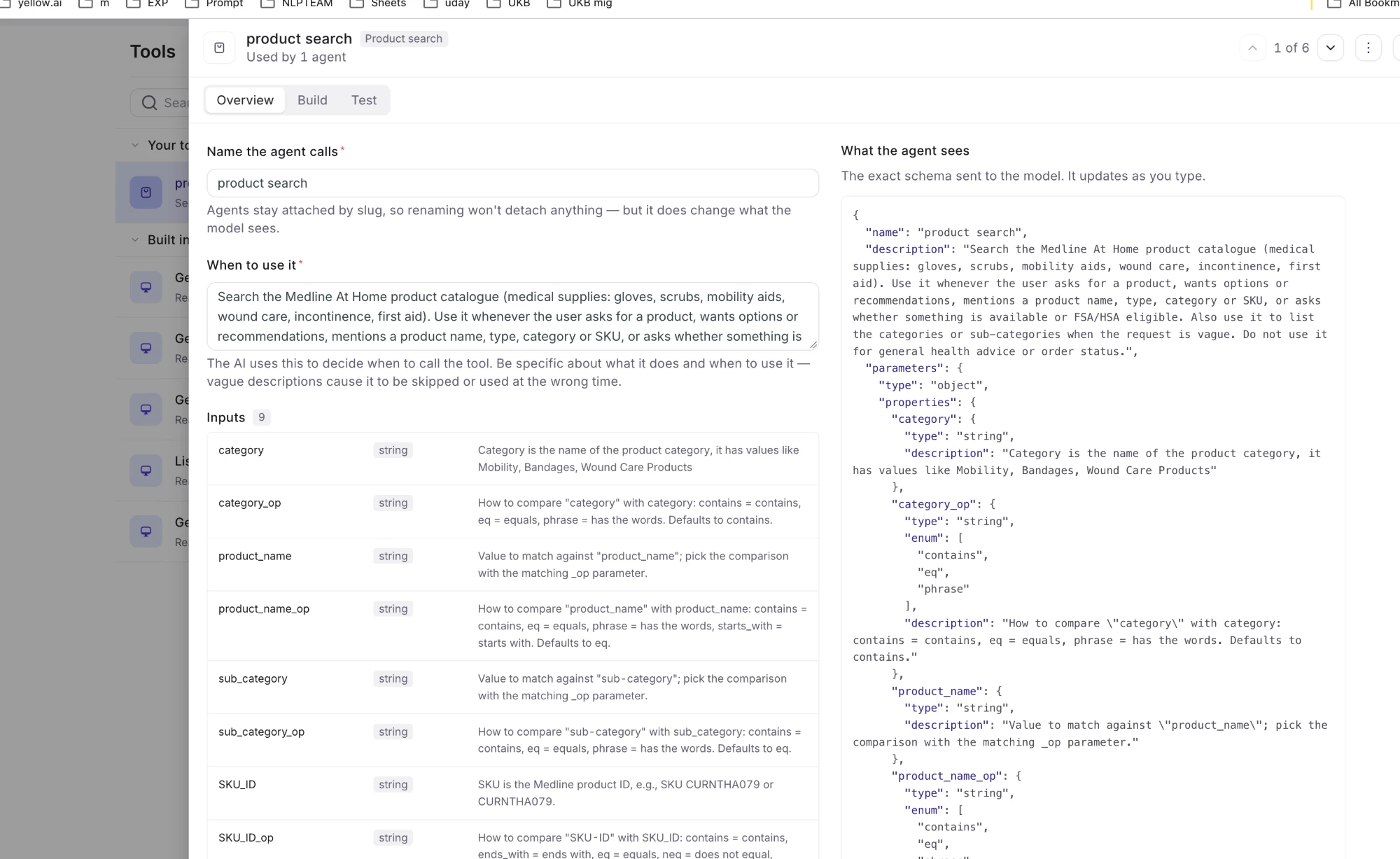
Step 3: Build, what the AI can filter by
Each attribute you add becomes one parameter the AI fills in from the conversation. Pick a tag from the catalogue; the dropdown shows each tag's type and its Knowledge Base description.
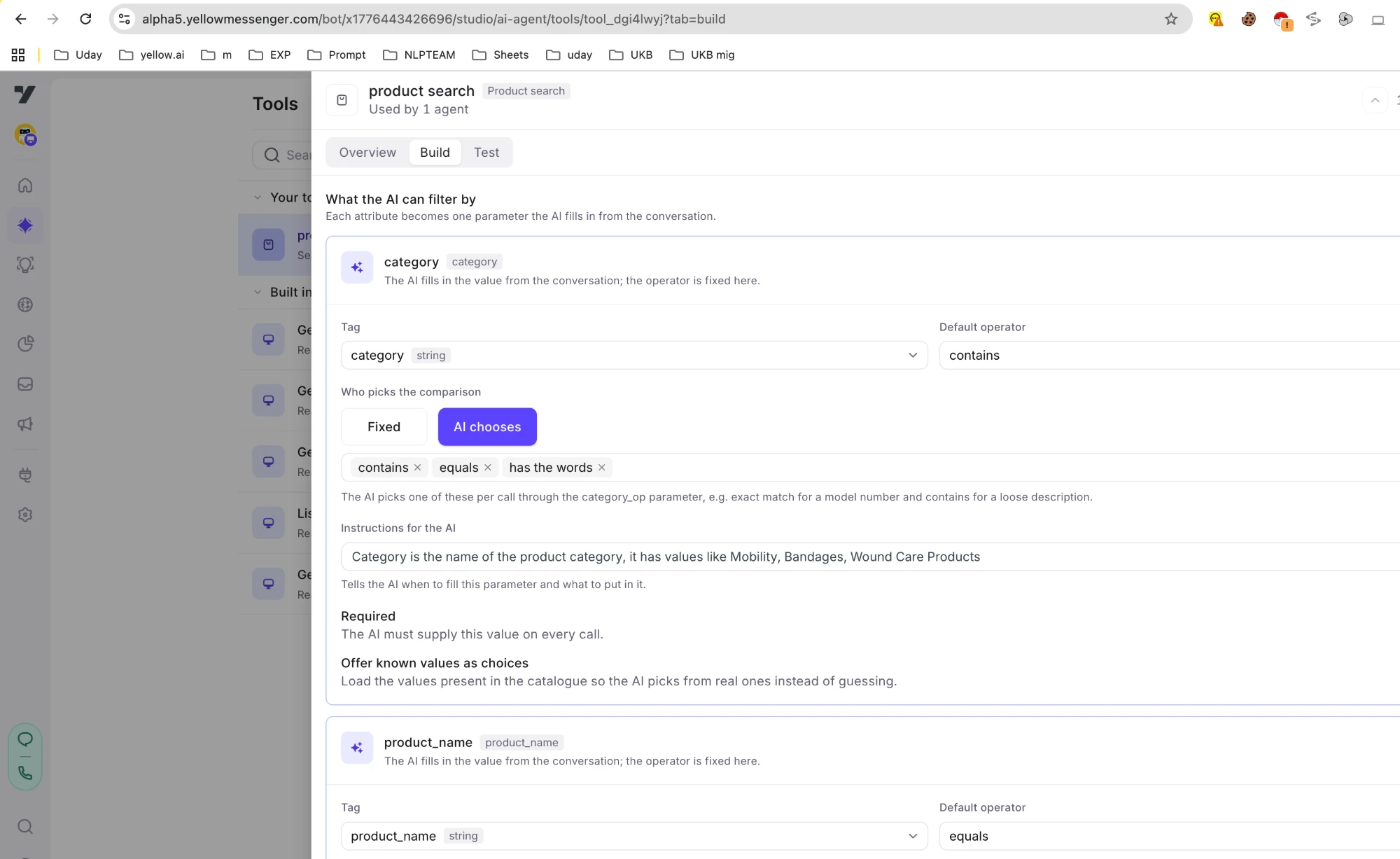
For every attribute:
| Setting | What it does |
|---|---|
| Tag | The metadata tag to filter on. Its Knowledge Base description is shown below and sent to the AI by default. |
| Operator or Default operator | How the AI's value is compared with the tag. See operators below. |
| Who picks the comparison | Fixed: the operator above always applies. AI chooses: you pick a short list of comparisons and the AI selects one per call through a <tag>_op parameter, for example equals for a model number but contains for a loose description. |
| Extra instructions for the AI | Optional. Leave empty to send the tag's own description. Type here only to replace it for this tool. |
| Required | The AI must supply this value on every call. Leave off for optional filters. |
| Offer known values as choices | Loads the values present in the catalogue (up to 50) and sends them as choices, so the AI picks a real category instead of guessing one. |
Combine AI filters appears once you have two or more attributes. Match all means a product must satisfy every filled-in parameter; Match any means one is enough. Match all is the usual choice, since each parameter narrows the search.
Start with two or three attributes: a category-style tag with known values turned on, and the product-name tag with AI chooses between equals and contains. Add a SKU or code tag with starts with if your users quote codes.
Operators
| Operator | Matches when the tag value… | Typical use |
|---|---|---|
| equals / does not equal | is exactly the value (case-insensitive), or anything else | Controlled vocabularies such as category or brand |
| is any of / is none of | equals one of up to 50 values, or none of them | Several categories at once |
| has the words | contains the whole word or phrase | Product names and descriptions |
| contains / starts with / ends with | has the text anywhere, at the start, or at the end | Loose text matching; codes and prefixes |
| has a value / has no value | is present, or missing | Scoping, usually as a fixed condition |
| greater than, at least, less than, at most, between | numeric comparison | Price, weight, count tags |
| before, after, between, in the last N days | date comparison | Launch or update dates |
Does not equal and is none of also match products that have no value for the tag at all.
Step 4: Build, always apply
Fixed conditions are added to every search, whatever the AI asks for. Use them to scope the catalogue: only products with a SKU, only one department, nothing from a discontinued category. Each row has a tag, an operator and a value; the value field offers the values that exist in the catalogue as you type.
Fixed conditions and the AI's filters are always combined with AND, so the AI can never search outside the scope you set here.
Step 5: Build, results
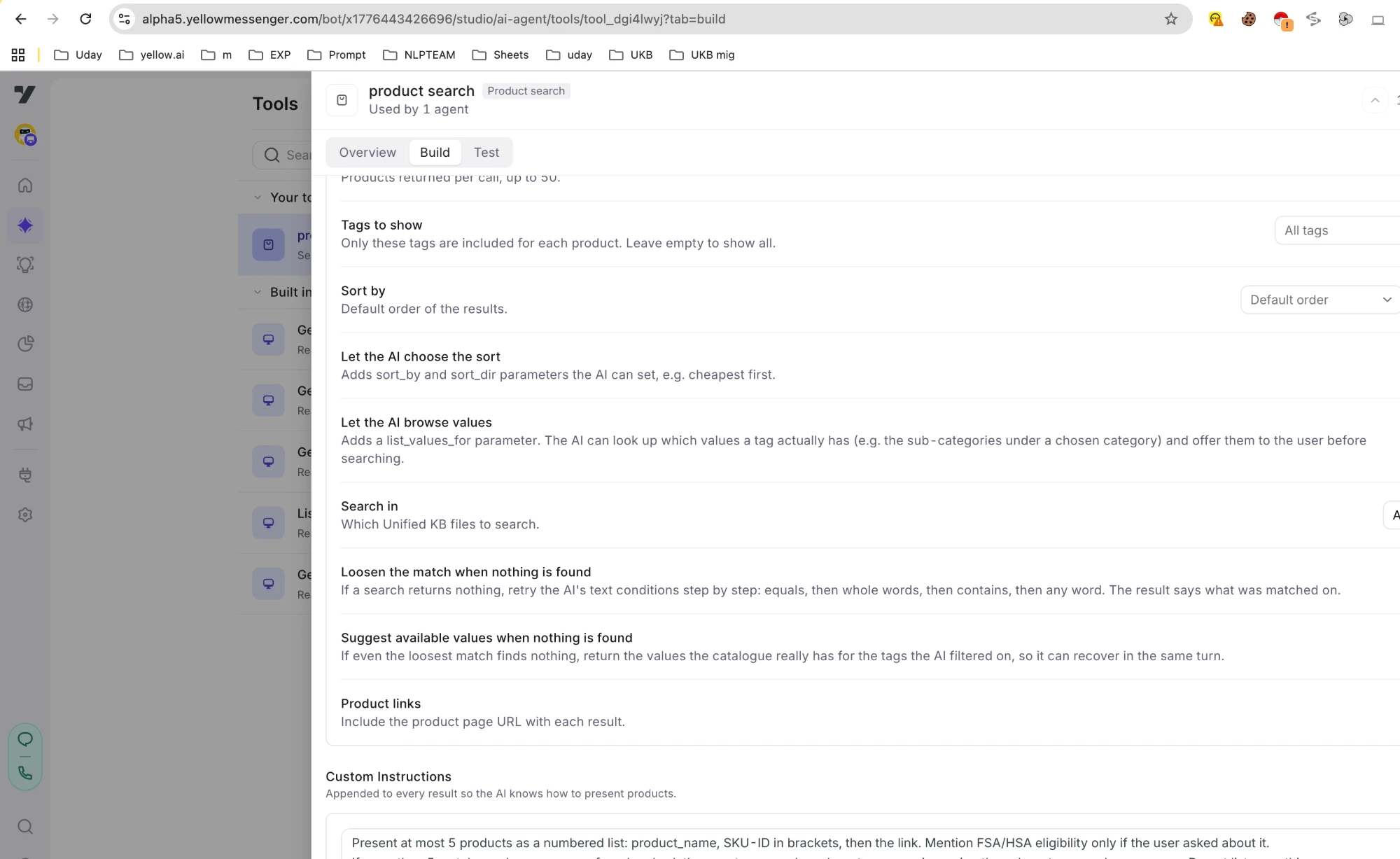
| Setting | What it does |
|---|---|
| Max products | Products returned per call, up to 50. 5 to 10 keeps the AI's reply short. |
| Tags to show | Only these tags are included for each product in the result. Pick the three or four the agent needs to describe a product. Empty means all tags. |
| Sort by | Default order of the results. |
| Let the AI choose the sort | Adds sort_by and sort_dir parameters, so the AI can answer "cheapest first". |
| Let the AI browse values | Adds a list_values_for parameter. The AI can ask which values a tag has (for example the sub-categories under a chosen category) and offer them to the user before searching. This is what makes a guided flow possible. |
| Search in | All files, published only, or draft only. |
| Loosen the match when nothing is found | If a search returns nothing, the tool retries the AI's text conditions step by step: equals, then whole words, then contains, then any word. The result tells the AI what was matched on. On by default. |
| Suggest available values when nothing is found | If even the loosest match finds nothing, the tool returns the values the catalogue really has for the tags the AI filtered on, so it can offer the closest ones instead of giving up. On by default. |
| Product links | Include the product page URL with each result. |
Custom instructions
Appended to every result so the AI knows how to present products. Tell it how many to show, which fields to mention, what to do when there are too many or none, and never to invent products.
Present at most 5 products as a numbered list: product_name, SKU-ID in brackets, then the link. If more than 5 match, say how many you found and ask the user to narrow by sub-category or size. If the match was loosened, say what you matched on and ask the user to confirm. If nothing matched and the result lists available categories, offer the two or three closest as choices. Never invent a product, SKU or price.
Step 6: Test
The Test tab runs the tool exactly as the agent would. You play the AI: fill in the parameters, pick an operator where the AI may choose, or pick a tag under Browse values of to list its values instead of searching.
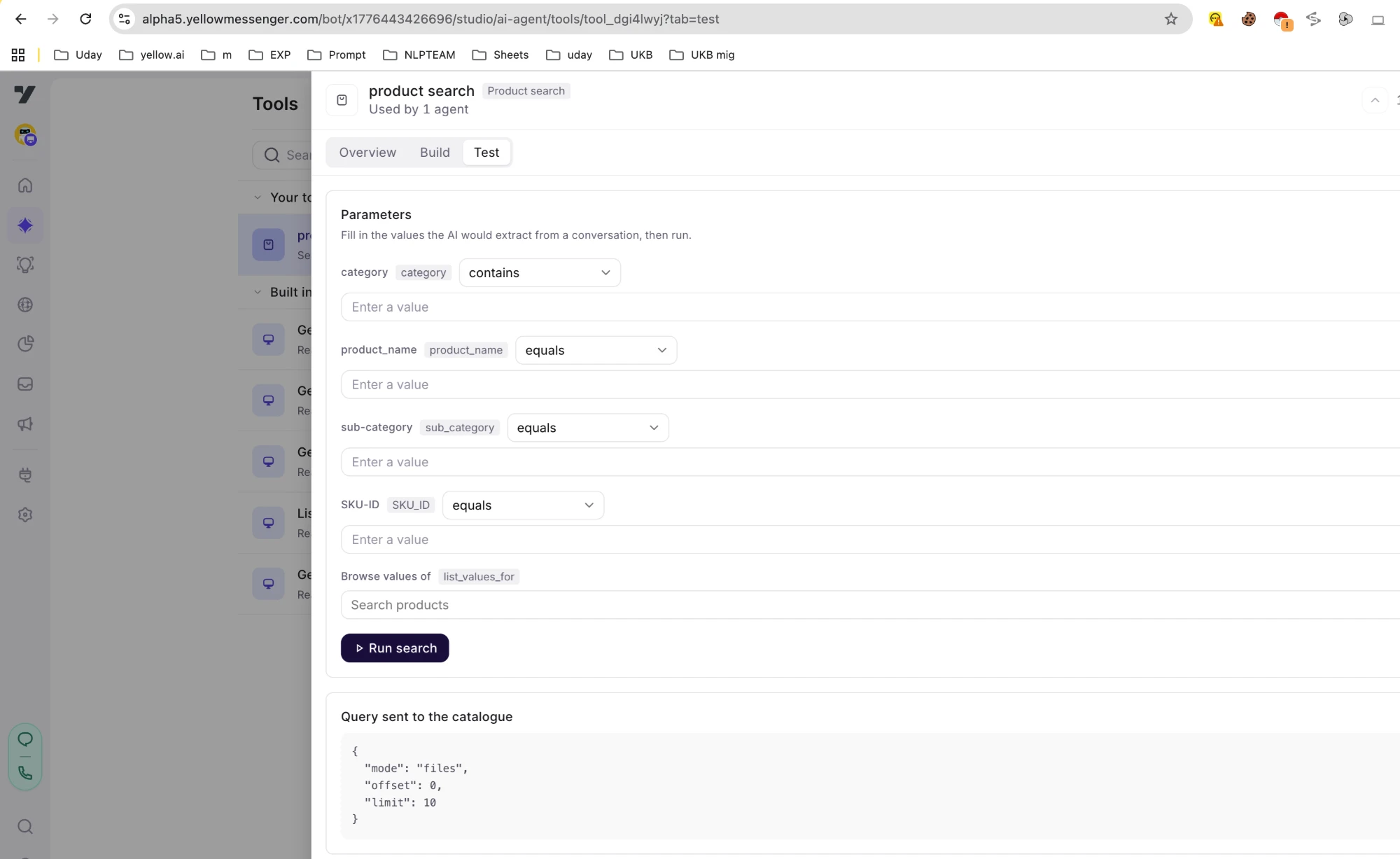
Below the inputs you see the query sent to the catalogue, then the products or values that came back, and What the agent receives: the exact text the model gets, including any loosened-match note. If a run needed several requests, the tab shows how many and which step produced the results.
Step 7: Attach it to an agent
Open your agent, add the tool under Reasoning & Actions → Tools, and write the goal and instructions around it.
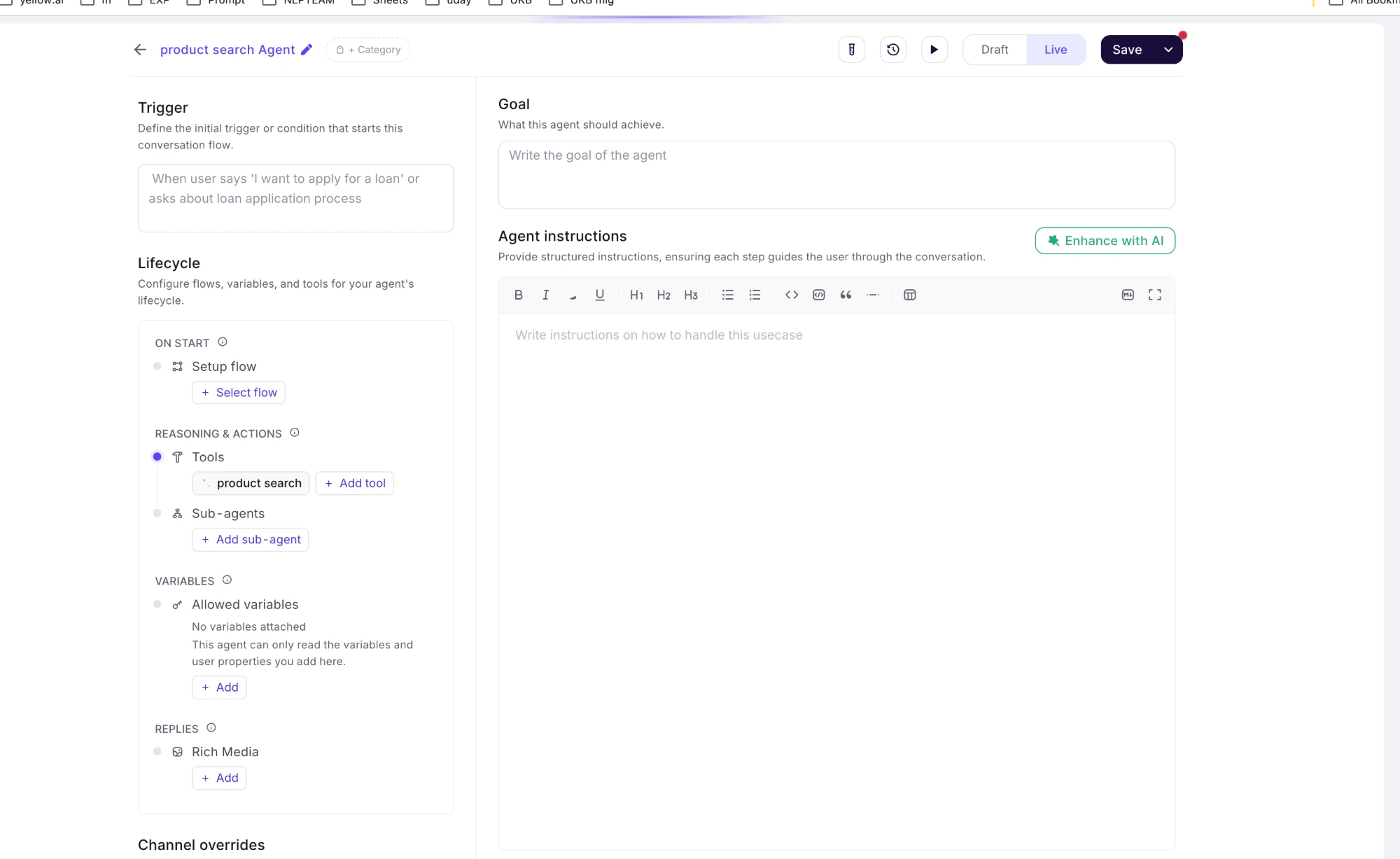
Instructions that work well with this tool:
- If the request names a product, type, category or SKU, call the tool right away.
- If the request is vague, search the broad category first. When too many products match, ask one narrowing question using the values the tool returned.
- Use the browse option when unsure which category the user means, and offer the closest two or three.
- When the tool reports a loosened match or available values after a miss, say so plainly and confirm before continuing.
- Only recommend products the tool returned.
How a conversation flows
- User: "looking for a windows laptop".
- The agent calls the tool with
category = "windows laptop". Nothing matches exactly, so the tool loosens to whole words, then contains, and finds products in Windows Laptops. It returns them with a note: "No exact match for category equals 'windows laptop'; showing products where category contains 'windows' instead." - The agent tells the user what it matched on and lists the products, or asks a narrowing question if there are many.
- Had nothing matched at all, the tool would have returned the categories the catalogue really has, and the agent would offer the closest ones.
Related
- PR: yellowdotai/web-app#5497
- Knowledge Base tool, for answering from document content rather than filtering on tags
- Add metadata to optimize KB search, for defining tags and their descriptions
- Tool best practices