Knowledge Base tool
The Knowledge Base tool lets your agent answer from your documents and FAQs. When the user asks a question your KB can answer, the agent searches it, picks the best matches, and composes a reply grounded in the source content.
This is the right tool whenever the answer lives in content you've already authored - policies, product docs, internal wikis, FAQs.
Before you start
Make sure your knowledge base actually has content. Upload your documents and FAQs in the Knowledge Hub before connecting the KB tool. The tool searches whatever's there at runtime.
Step 1: Add the tool
Go to AI Agent → Tools → Add Tool → Knowledge Base. The configuration drawer opens with three tabs: Settings, KB Config, and Test.
Step 2: Settings - name and description
Like every tool, KB tools start with Name and Description.
Good description:
"Search Acme's product documentation and FAQs. Use this for any product feature question, troubleshooting, pricing tier comparison, or how-to. Do not use this for billing or order-status questions - those have dedicated tools."
The LLM reads this to decide when to fire the KB lookup vs another tool. Be explicit about both when to use it and when not to.
Step 3: KB Config - the meaningful settings
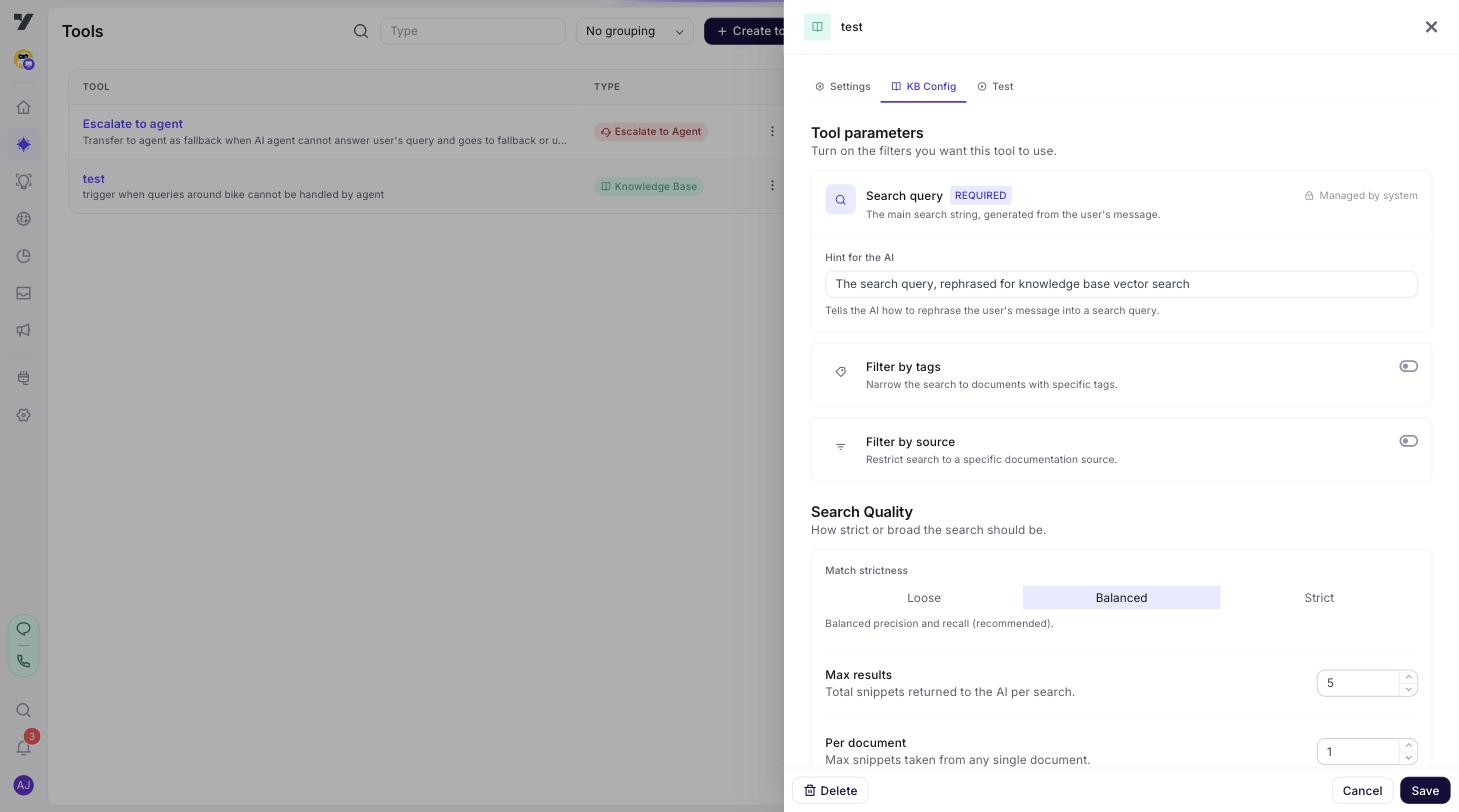
Switch to the KB Config tab. This is where most of the work lives.
Filters
Restrict the search to a subset of your KB:
- Filter by metadata - narrow results to documents matching specific metadata key-value pairs. Only custom metadata keys that you've configured in your Knowledge Base settings appear here. See Add metadata to optimize KB search for setting up metadata keys.
- Filter by source - only search documents from a specific source/connector.
Metadata filters: Fixed vs AI-decided
Each filter supports two value source modes:
| Mode | Behaviour | When to use |
|---|---|---|
| Fixed value | You set the key-value pairs in the config. Every search always applies them. | Guaranteed scoping — e.g. a "Broadband Support" tool that must only return broadband docs. |
| AI-decided | The filter keys are exposed to the LLM as tool input parameters. The LLM extracts values from the conversation at runtime. | Dynamic scoping — e.g. a general product tool where the user's question determines which product line to filter on. |
When using AI-decided, you select which metadata keys the LLM can filter on and optionally mark them as required. The LLM sees each key's description and allowed values (if the key is a picklist/multiselect type) to decide what to pass.
When using Fixed value, add one or more key-value rows. The AI will always filter by these metadata pairs when searching.
Match conditions per key
Each metadata filter — a Fixed-value row, or a selected key in AI-decided mode — carries a match condition that controls how it applies to the search:
| Condition | Behaviour |
|---|---|
| Must match (default) | Only documents with this metadata value are returned. Every "must" filter has to match. |
| Should match (OR) | Documents matching any of the "should" filters are boosted into the results — at least one of them has to match, but no single one is required. Use it for "this product line or that one" scoping. |
| Must not match | Documents with this metadata value are excluded from the results. |
Pick the condition in the select next to each filter row (or next to each selected key in AI-decided mode). Filters without an explicit condition behave as Must match, so existing tools keep working unchanged.
Combine conditions to express real scoping rules — e.g. region = EU (must) + product = broadband / product = tv (should) + audience = internal (must not) returns EU broadband-or-TV docs while keeping internal content out.
Confidence and result tuning
| Setting | What it does | Typical value |
|---|---|---|
| Match strictness | A preset selector - not a free numeric field - for the minimum match score a result needs to be used: Loose (0.3), Balanced (0.5), or Strict (0.7, the maximum available). Results below the selected threshold are dropped. | Balanced |
| Max results | How many top results to retrieve from the KB. | 5-10 |
| Per document | Cap on how many chunks to use from a single document - prevents one big doc from drowning out others. | 1-3 |
Best practices:
- Start at Balanced, then move deliberately. Balanced (0.5) is the recommended default. Switch to Strict (0.7 - the highest the preset goes) only if you're seeing irrelevant matches; switch to Loose (0.3) if the agent says "I don't know" too often and you want broader recall. There's no numeric override past Strict's 0.7.
- More search results ≠ better answers. 5 well-chosen chunks beats 20 noisy ones.
Per document= 1-3 is usually right. Higher only when your docs have very long sections that genuinely span multiple ideas.
Result formatting
| Setting | Effect |
|---|---|
| Show links | Include source links in the agent's reply (so the user can read the full doc). |
| Show page numbers | Include page numbers for PDFs / paginated sources. |
| Show confidence | Display the match score next to each citation. |
| Rich media | Render images / videos / formatted blocks pulled from the source. |
Show links when your audience benefits from reading the source themselves (B2B support, technical docs). Hide them when you want a clean conversational reply (consumer chat, voice).
Conversation history
| Setting | Effect |
|---|---|
| Use conversation history | Pass prior turns into the KB query so context-dependent questions ("and what about the Pro tier?") work. |
| History turns | How many prior turns to include. |
Turn this on for any conversational KB tool. Without it, follow-up questions fall flat.
Result instructions
The result instructions field is a freeform prompt fragment that tells the LLM how to use the search results. Examples:
- "Always cite the document title in your reply."
- "If the user asks about pricing, also mention that pricing tiers are subject to annual contract changes."
- "Keep replies under three sentences unless the user asks for detail."
This is your hook for shaping the answer style without rewriting your assistant's identity.
Cached answers (advanced)
The Use cached answers option enables the KB answer cache. If a cached answer above the confidence threshold exists for the user's question, it's sent to the user directly - skipping the LLM composition step. This is faster and cheaper but less flexible.
The cache also fills itself: when no cached answer is found, the AI answers as usual from the retrieved results, and that composed answer (with its source links) is written back to the cache. A similar question asked later gets the cached reply directly.
Turn it on for high-volume FAQ use cases where a known canonical answer is what you want. Leave it off when you want the LLM to phrase the answer in context.
The answer cache is rolled out per account. If the toggle has no effect on your account, it isn't enabled for you yet - contact support to have it switched on.
Step 4: Define input schema
KB tools have a fixed input shape - typically just { query: string }. You can edit the query description to bias what the LLM extracts:
"The user's natural-language question, rephrased into a clear, standalone search query."
This nudges the LLM to clean up vague questions before searching.
Step 5: Test before saving
Switch to the Test tab. The test runner lets you run KB searches directly against your knowledge base without going through the full agent flow.
- Search query - type a question your users would ask.
- Metadata filters - optionally add metadata key-value filters to test how filtering affects results. This uses the same custom metadata keys configured in your Knowledge Base settings.
- Click Run Search.
You'll see:
- Each retrieved document chunk with its confidence score and source name.
- Source links (if available).
- A result count and status summary.
Try several queries - including obvious ones, edge cases, and things you know aren't in your KB (the agent should say it doesn't know, not hallucinate). Test with and without metadata filters to verify scoping works as expected.
Step 6: Save
Click Save. The tool now exists in the library - saving doesn't give it to any agent yet.
Step 7: Attach it, and say when to use it
Two separate steps, and skipping either means nothing happens.
Attach it to the agents or nodes that need it, or publish it to every applicable agent through Global tools. An unattached tool is never called.
Then say when to use it. The description does most of the work - name the domain it covers ("product features", "troubleshooting", "pricing") and what it doesn't. If the agent must search before answering rather than answering from memory, say so in its Instructions:
Call @product-docs-search before answering any question about product
features or troubleshooting. If it returns nothing, say you don't have
that information - never fill the gap yourself.
That last line matters more here than for most tools: an unanswered knowledge question is exactly where an agent invents something.
Best practices
- One KB tool per domain. Separate "Product Docs" from "Internal Policies" from "FAQs" with different tag filters. Cleaner, more predictable.
- Tune confidence with real queries. Sit down with a list of 30 representative questions and adjust until precision is high without dropping too many.
- Always enable conversation history for chat agents. Voice agents may want to skip it for latency.
- Don't expose internal-only docs. A KB tool with no filter sees everything. Be careful what's in your KB.
- Cite sources when it helps users. "According to the Pro Plan docs…" is more trustworthy than an unsourced statement.
- Use cached answers for stable FAQs only. Anything that changes (pricing, policies, hours) should go through the LLM path.
Trace logs (Analysis panel)
When you test in the Playground, the Analysis panel shows two KB-related trace entries under each tool call:
- Knowledge base: N results - shows the result count, each chunk's source, score, answer preview, and link. If metadata filters were applied, a
metadataFiltersfield shows exactly what was sent. - Tool result: KB_TOOL - shows the formatted text that was passed to the LLM for composition.
Use these traces to verify that your metadata filters are being applied and that the right documents are being retrieved.
Common pitfalls
| Symptom | Likely cause |
|---|---|
| Agent says "I don't know" too often | Confidence threshold too high, or your KB doesn't actually have content for these questions. |
| Agent hallucinates facts | Confidence too low (low-quality matches still pass), or no KB tool wired so it answers from memory. |
| Wrong-domain results | No filter on the tool. Add metadata or source filters to scope it. |
| Metadata filter returns no results | The filter value doesn't exactly match what's stored on the documents. Check capitalization and spelling in your KB metadata settings. |
| Follow-up questions fall flat | "Use conversation history" is off. Turn it on. |
| Slow replies | Search size too high, or rich media is rendering large assets. Trim. |
Legacy reference
The legacy KB agent config doc describes a related legacy concept (KB agent, an entity rather than a tool). Nexus uses the KB tool described above - same underlying retrieval, different configuration surface.