Lifecycle hooks
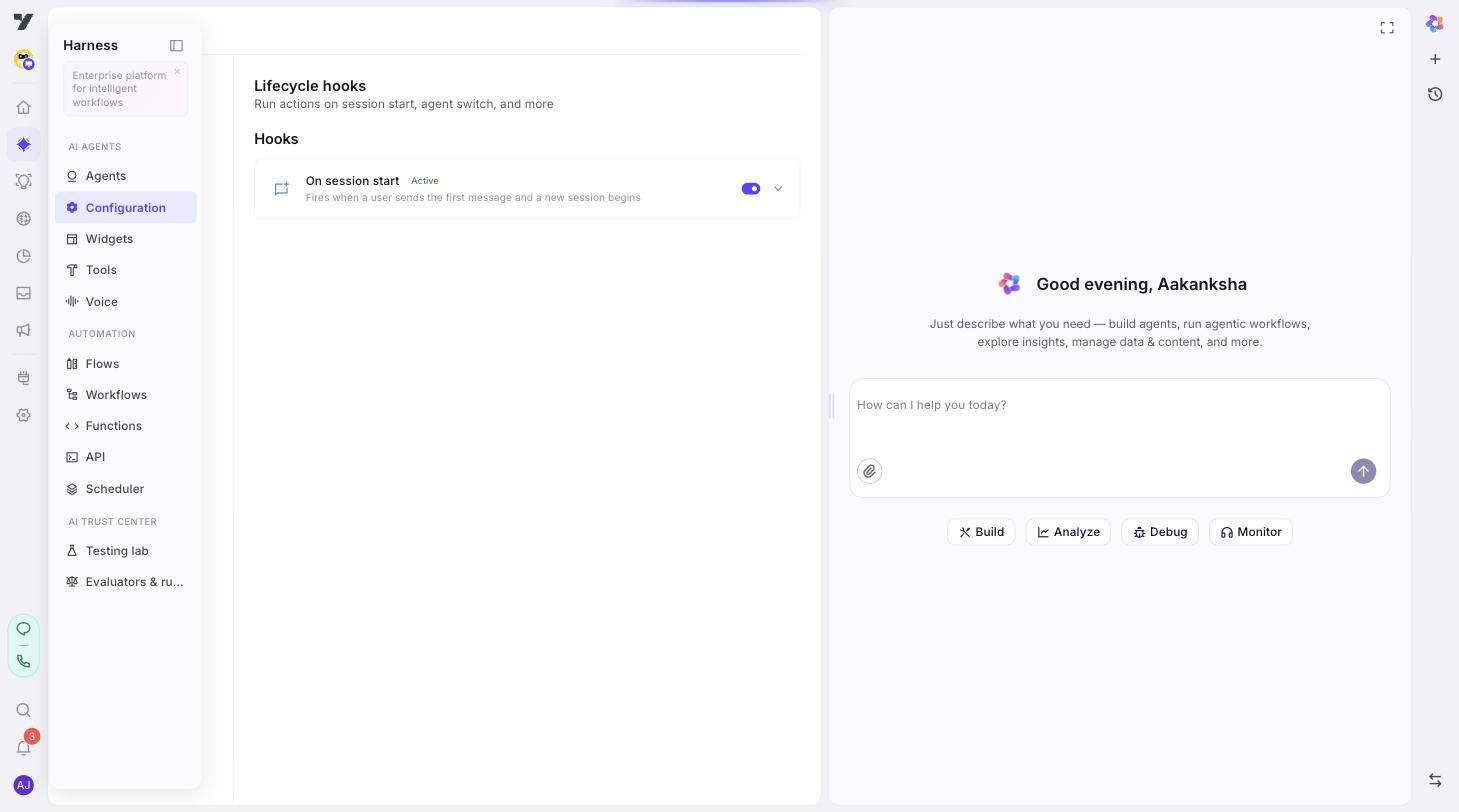
Lifecycle hooks run behaviour at fixed moments in a conversation rather than as part of a reply - when a session starts, on every turn, when it ends, or when the customer goes quiet. They're project-level, so they fire regardless of which agent is handling the turn.
Most assistants need none of these. Reach for a hook when the behaviour genuinely isn't tied to a reply: analytics, custom logging, context injection, or a nudge when someone stalls. Leaving them all off is a perfectly normal configuration.
Find them at AI agents → Configuration → Lifecycle hooks.
Each hook has a toggle and an expand arrow, and does nothing until you turn it on and configure it.
| Hook | Fires | Typical use |
|---|---|---|
| On session start | When a customer sends the first message and a new session begins | One-time setup - look up the customer, seed memory, run an onboarding workflow |
| On user message | On every customer message turn | Cross-cutting work every turn needs - logging, analytics, refreshing a piece of context |
| On session complete | Once, when the session ends | Close-out logging, a wrap-up workflow, updating a CRM record |
| On user inactivity | After the customer has been idle for a duration you set | Proactive nudges to re-engage someone who has stalled |
The first three run a workflow or a Set Variable action alongside the turn. On user inactivity works differently - it's rules-based, and covered on its own below.
On session start, on user message, on session complete
These three share a shape: toggle on, expand, attach the workflow or action to run.
On user message runs alongside the agent handling the reply, not instead of it. It's for work that should happen every turn no matter which agent is active.
On session complete is terminal. By the time it fires there's no conversation left to reply into, so it runs its action and produces no AI reply. That also makes it the one hook where storing the workflow's result in a variable is optional - nothing downstream reads it. Every other hook requires it, because their output feeds the turn that follows.
Seeding context at the start
The most useful thing On session start does is load, once, what every agent would otherwise look up for itself.
Look up the customer, write the result to a global variable, and from the first turn onward every agent already knows who they're talking to. No agent needs an identity tool, no journey repeats the lookup, and nothing has to ask the customer for something you could have resolved.
On session start → @getCustomerDetails → Store output in `customer`
That's the whole pattern, and three things follow from it:
- It has to be global. A journey variable would die with the flow that wrote it. The point is that other agents can read it.
- One lookup, not one per journey. This is the difference between paying for the call once a conversation and once per journey the customer visits.
- Later agents read it rather than re-fetching. Give them the variable, not the tool - fewer tools on a node is less weight on every turn and one less thing to pick wrongly.
Plan for the seed failing
The hook runs before anyone has said anything useful, so its failure is invisible unless you design for it. Decide which of these you want, because doing nothing picks the first one for you:
| If the lookup fails | Result |
|---|---|
| Nothing set | Every downstream agent sees an empty variable and behaves as though the customer is unknown |
| A default value on the variable | Agents can tell "not looked up yet" from "looked up, found nothing" |
| The workflow writes a status flag too | Downstream steps can branch on it - the honest option when the difference matters |
That last distinction is the one that bites in practice: "we couldn't check" is not the same as "they aren't entitled", and an agent that can't tell them apart will deny a legitimate request during an outage.
On user inactivity
Rules-based rather than a single action. Add up to 5 rules, each with:
- A threshold - whole minutes, from 1 to 59, of idle time before it fires.
- A workflow to run when that threshold trips.
The workflow runs without an LLM round-trip, so a nudge is fast and its wording is exactly what you wrote.
How the timers behave:
- Every inbound customer message resets them.
- When a threshold passes with no new message, that rule's workflow fires.
- If several thresholds elapse at once - after backend lag, say - only the largest eligible one fires. Customers don't receive a stack of stale nudges.
The Customer Support preset
An out-of-the-box ladder you can drop in as a starting point:
| Threshold | Rule |
|---|---|
| 1 minute | Soft nudge |
| 3 minutes | Offer human transfer |
| 5 minutes | Create follow-up ticket |
Note the shape: it escalates from a nudge, to a person, to a ticket - so an abandoned conversation still ends in something actionable rather than silence.
The preset only appears in the empty state. Once you've added a rule of your own it's no longer offered, so it can't overwrite work you've already done.
When it's worth it
- Support - re-engage an idle customer, then offer a person.
- Sales and booking - nudge someone who stalled mid-form.
- Long flows - capture what you have before the session times out.
Getting them right
- Space the thresholds out. Three nudges inside two minutes reads as harassment. Escalate in kind, not just in frequency - nudge, then offer help, then leave a trail.
- Start from the preset and change the workflow contents rather than the ladder, at least until you've watched real sessions.
- Assume the customer has gone. By the time an inactivity workflow runs they may have closed the tab, so don't write it as though earlier session state is still meaningful, and don't have it ask a question nothing will answer.
- Don't over-hook. If the behaviour belongs to one agent's job, put it in that agent or a tool. A project-level hook that only matters in one place fires everywhere it doesn't.
Validate by sending a first message and then letting a session sit idle in the Testing Lab - inactivity in particular is easy to configure and never actually see.
Next: Fallback - what happens when a request can't be handled.