Jump anywhere with the command palette
What shipped
Hit ⌘ K (Mac) or Ctrl K (Windows / Linux) anywhere in the platform to open a command palette and jump straight to any page, project, workflow, flow, or AI agent — without clicking through the side nav.
Who it's for
Anyone who navigates the platform regularly — admins switching between projects, builders hopping across workflows in Studio, agents jumping between conversations. Power users who prefer keyboard over mouse get the most leverage.
How to use
Open the palette
⌘ K/Ctrl Kfrom any screen.- Or click the search affordance in the global sidebar.
Search pages (default)
Just start typing. Matches static routes (Home, Inbox, Insights, Settings sub-pages, etc.). This mode is instant — no network calls.
Switch to a scope
The palette opens in Pages mode. To search a different kind of thing, enter a scope by pressing Tab to cycle (Pages → Projects → Workflows → Flows / AI agents → back to Pages) or by clicking a chip in the "Jump to" bar:
| Scope | Available in |
|---|---|
| Projects | Always |
| Workflows | Current project |
| Flows | Non-AI-agent projects |
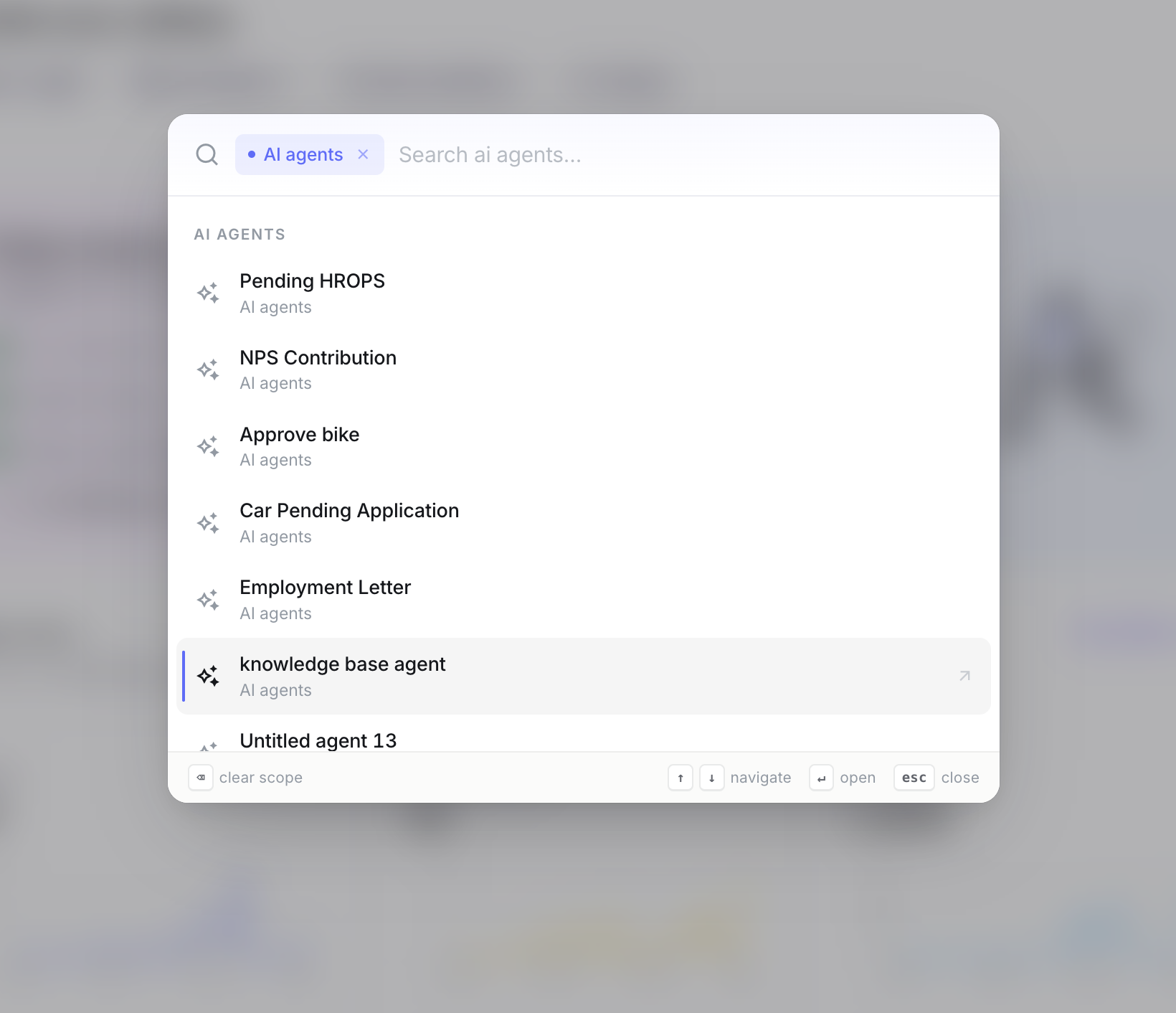
| AI agents | AI-agent projects |
A chip appears at the left of the input showing the active scope. Type to filter, ↑ / ↓ to move, ↵ to open, Backspace on an empty input to clear the scope and return to Pages. Shift + Tab walks the scope cycle in reverse.
We use Tab instead of a ⌘ ⇧ + letter chord because the browser reserves several of them (⌘ ⇧ W closes the window, ⌘ ⇧ A opens Chrome's tab search), and we don't bind bare letters because they would block typing terms like "Projects" or "access control".
Jump to a specific environment of a project
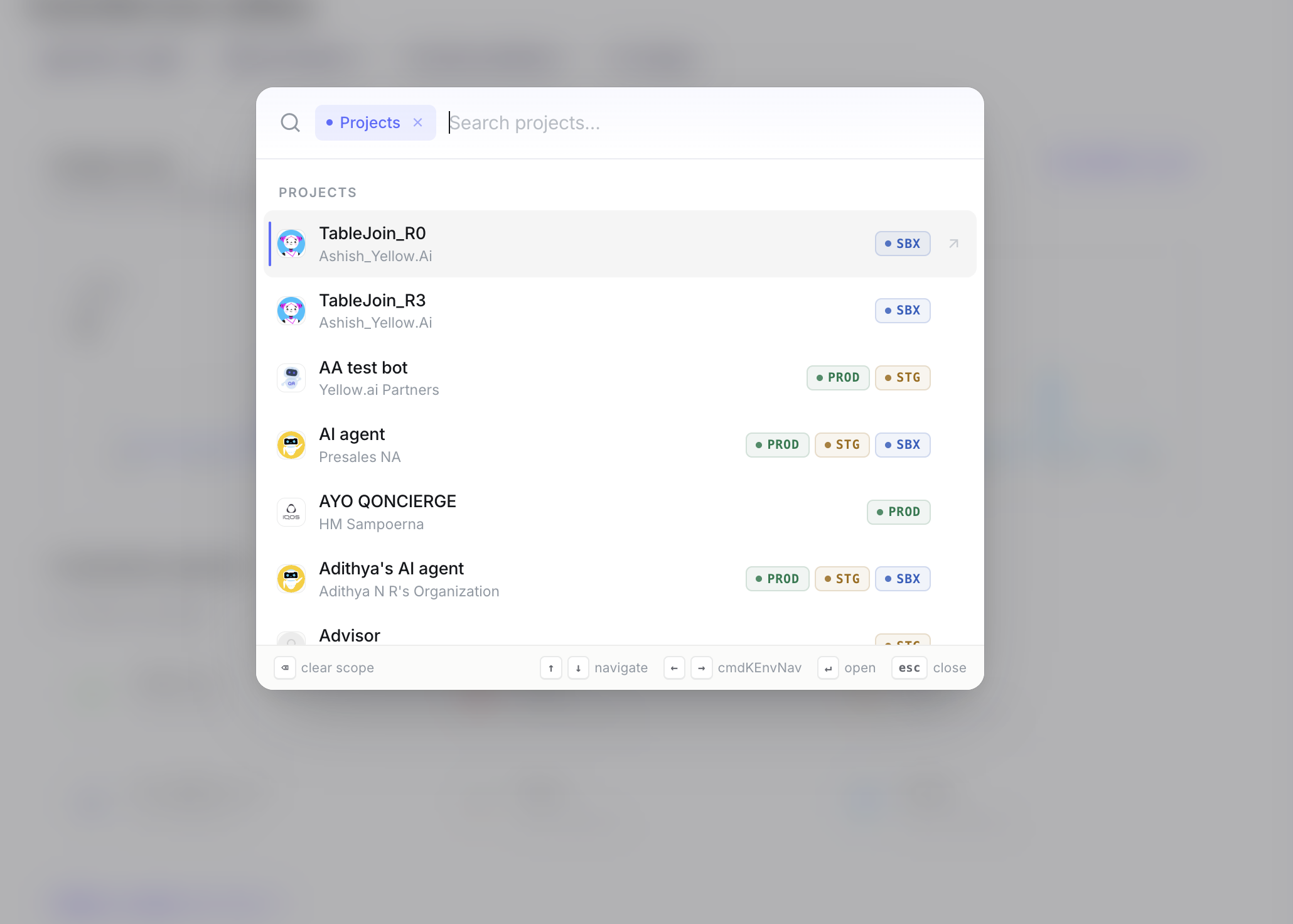
Project rows show small chips on the right for every accessible environment — Production, Live, Staging, Development, Sandbox, etc.
- Click an env chip to jump straight to that env.
- Or use the keyboard: with a project row highlighted, press
→to step through its env chips,←to go back. The focused chip glows. Press↵to open the focused env (or, if no chip is focused, the row's default env).
The default env when you press ↵ on the row itself is the highest-priority accessible one — Production first, then Live, Staging, Development, Sandbox.
If a project has no env metadata or none are accessible, the row opens the project home as before.
Visual affordances
- Avatars — project rows render the project's icon. Falls back to a generic glyph if the icon is missing.
- Subscription — project subtitle shows the subscription / account the project belongs to, useful when you have multiple projects with similar names.
- Footer hints — the bottom of the palette always shows the keys you can use right now (
⇥cycle scope,← → envon project rows that have envs,↵open /Escclose everywhere). - First-open nudge — the very first time you open the palette after this update, a one-time hint shows that Tab cycles through scopes.
Screenshots
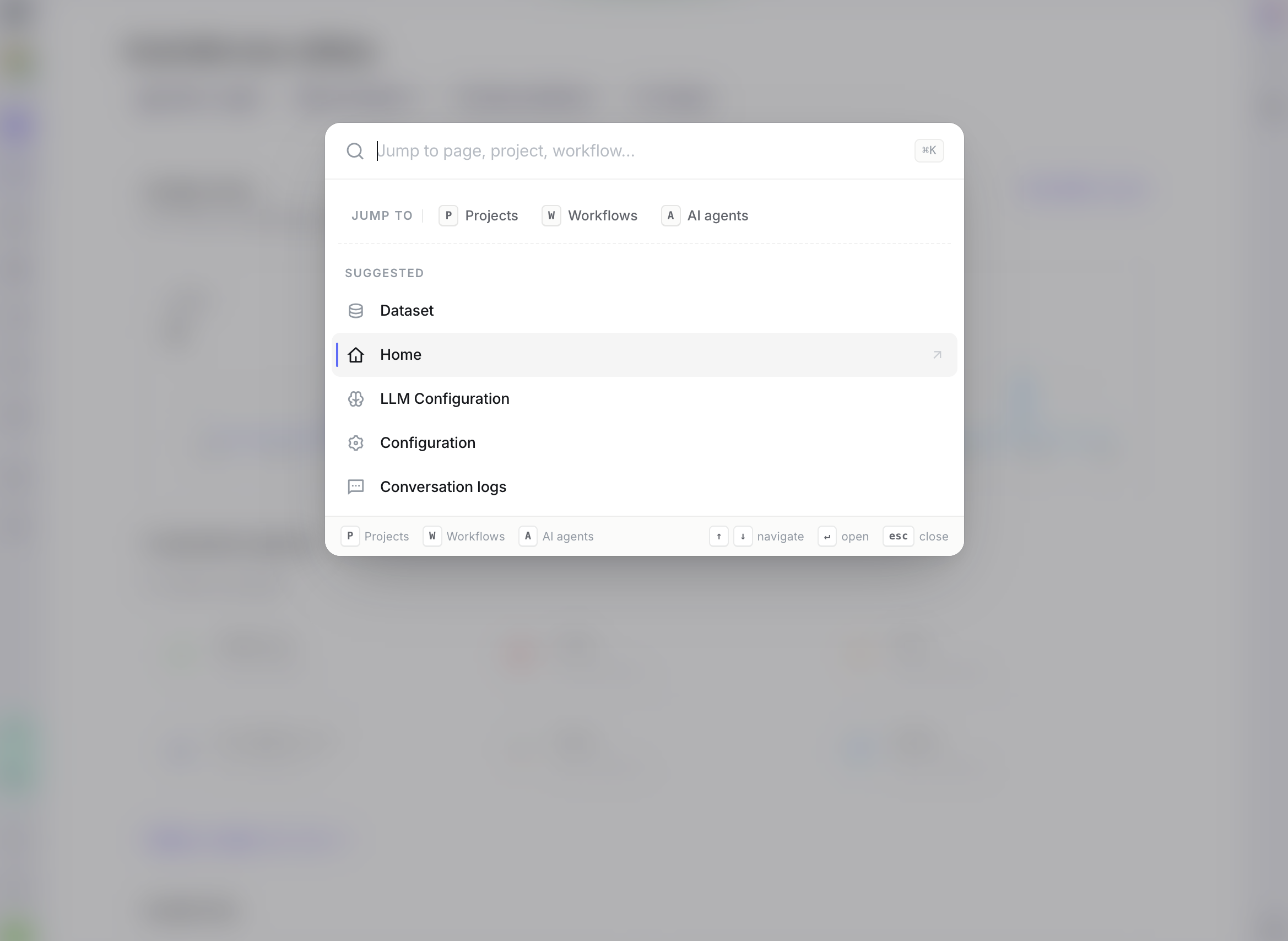
Default Pages mode
⌘ K from any screen — the empty palette shows the "Jump to" scope chips up front.
Projects scope
Tab once from Pages (or click the Projects chip) to switch projects. Each row shows the project avatar, subscription, and an inline chip per accessible environment.
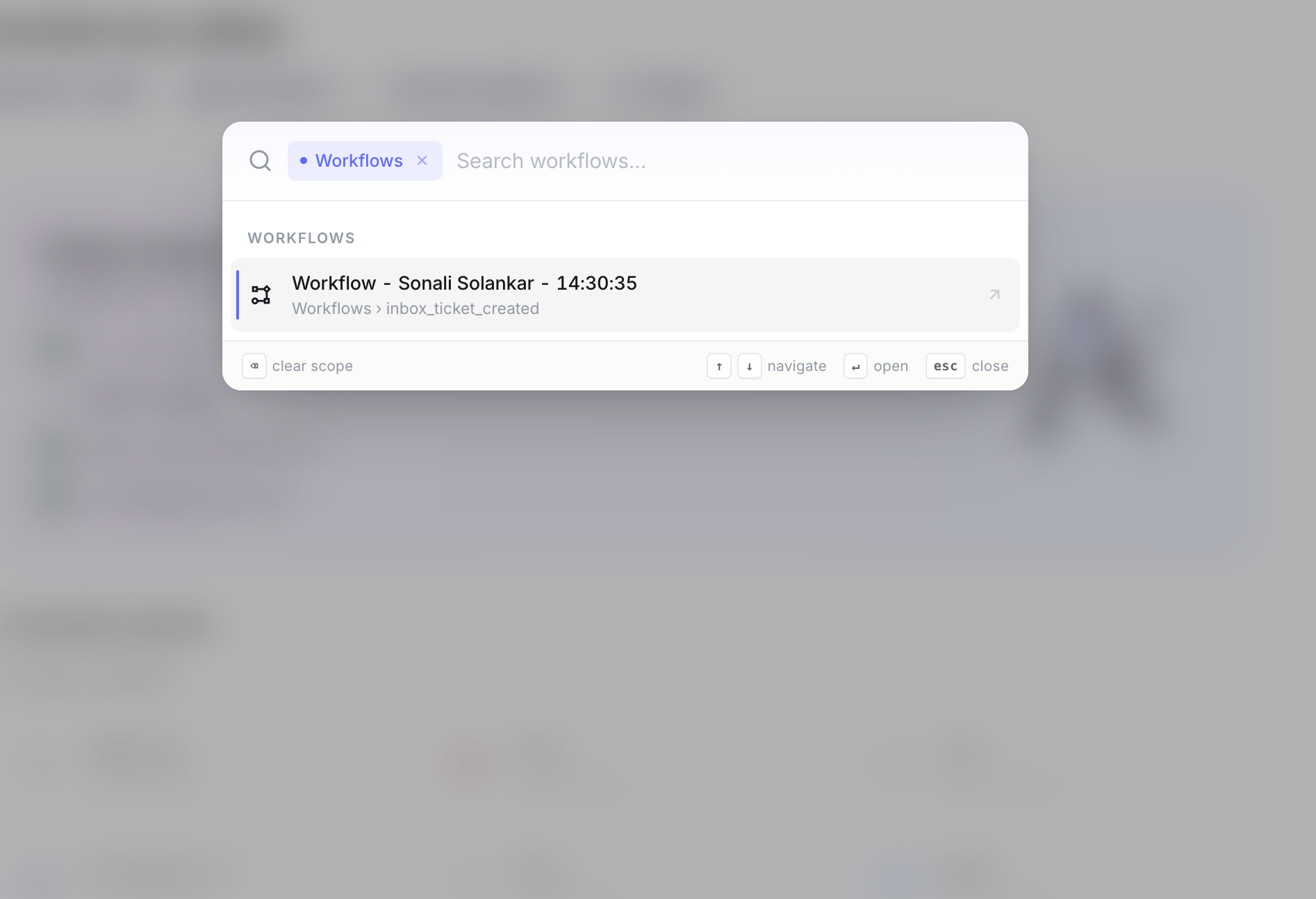
Workflows scope
Tab again (or click Workflows) to jump to a workflow inside the current project.
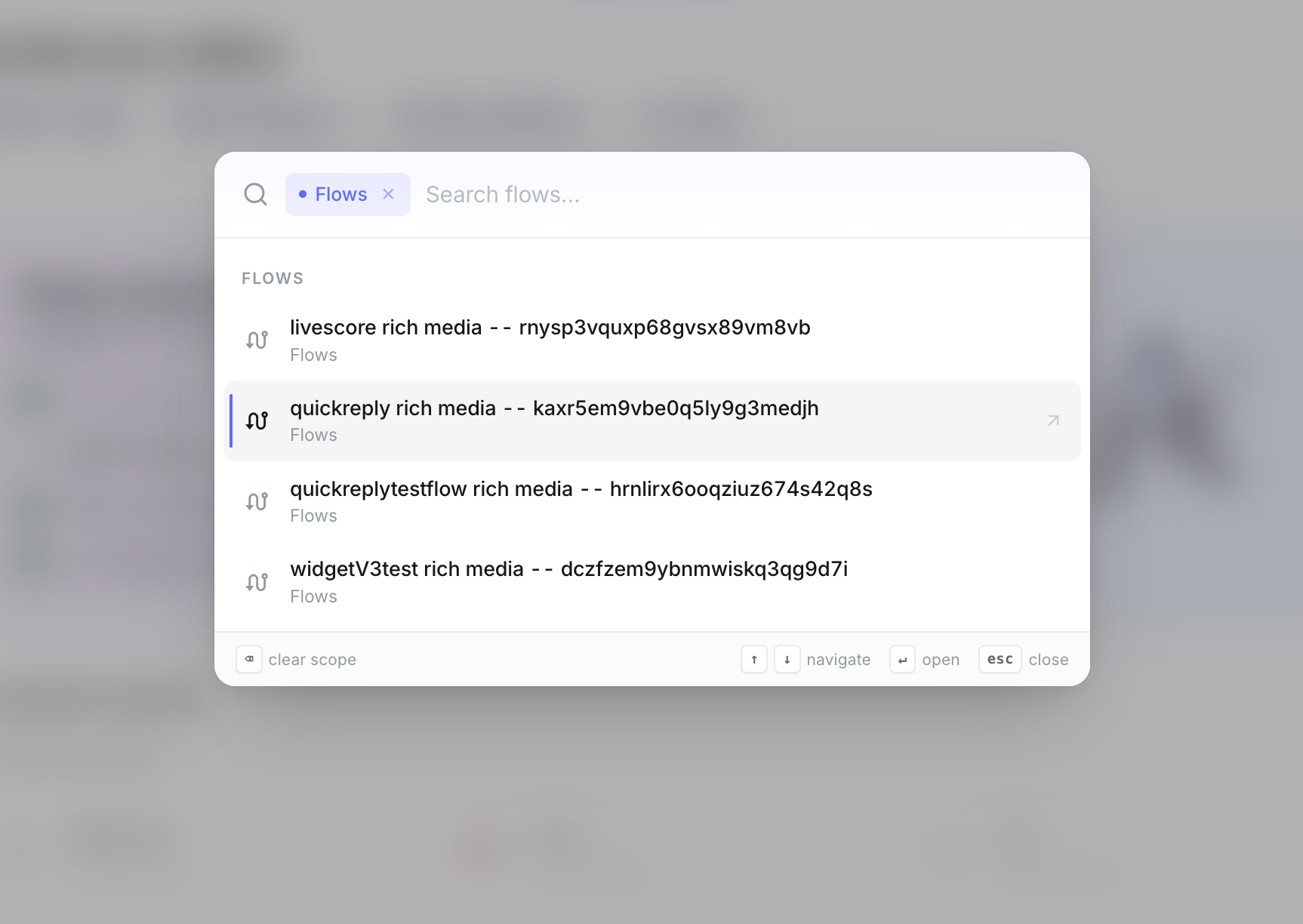
Flows scope (non-AI-agent projects)
Tab again (or click Flows) to jump to a conversation flow.
AI agents scope (AI-agent projects)
In AI-agent projects, the third Tab stop is AI agents — jump to a sub-agent inside the project.